

Review Queues
Copyright Amazon.com, Inc. or its affiliates. All Rights Reserved. SPDX-License-Identifier: MIT-0
Review Queues
Section titled “Review Queues”Table of Contents
Section titled “Table of Contents”- Overview
- How a document reaches a queue
- Annotator guide
- Admin guide: Review Management
- Reviewing from the document page
- Turning review queues on
- Review status for downstream consumers
- Limits and behaviour to know
Overview
Section titled “Overview”Review queues send documents to people before the documents finish. This is HITL (human-in-the-loop) review, and it works in both BDA mode and Pipeline mode. There are two kinds of queue:
- Production queues hold processed documents that raised confidence alerts. A document waits in its queue along with the reasons it is there.
- Test Studio queues come one per test set, automatically. They hold the set’s documents whose labels need a human check before they become ground truth.
An Admin assigns queue items to Annotators. An Annotator corrects the item and finishes it with Process Changes, or skips it to give it back to its queue. An Admin can work a Production item too. For a Production document, the corrections are applied by a second (finalize) run, which produces the document’s final outputs. For a Test Studio document, they become the set’s reviewed labels.
Queues are system-wide, and they are managed only by Admins in
Review Studio › Review Management; they aren’t part of any Configuration Profile.
Production documents go to the Default queue. A document is routed there when
HITL is enabled in its configuration (hitl.enabled), the Default queue is enabled,
and the document raised confidence alerts or left a required field without a value.
Queues have no confidence threshold of
their own: the alerts use each field’s own threshold, otherwise
hitl.confidence_threshold. The Default queue is enabled on a new stack. While HITL
is off in a document’s configuration, or the Default queue is off, documents keep
the existing Human-in-the-Loop review flow.
How a document reaches a queue
Section titled “How a document reaches a queue”-
The document is processed as usual (OCR, classification, extraction, assessment).
-
If HITL is enabled in the document’s configuration and the Default queue is enabled, the document is held in the Default queue when either of these is true:
- a section raised a confidence alert: a field’s confidence is under its own
threshold (
x-aws-idp-confidence-thresholdin the class schema), or underhitl.confidence_thresholdwhen it has none. Only a field with an extracted value can raise one; a field with no value does not - a field the class schema marks
requiredhas no extracted value, whilehitl.route_missing_required_fieldsis on (the default). Its review reason reads Missing required:(see Absent values and missing required fields) - in BDA mode, the matched blueprint’s confidence is under
hitl.confidence_threshold, or BDA matched a blueprint but returned no usable confidence for it: null, NaN, infinite,trueorfalse, a string that is not a plain number (including a percentage string such as"95%"), or a value that is still outside 0 to 1 after a bare number between 1 and 100 is read as a percentage (95reads as 0.95;150and-0.2are unscored). An unscored blueprint is held at every threshold, the same as in legacy HITL mode
These are the same alerts the document page shows, and each one becomes a review reason. Routing reads them from the processed document; it doesn’t read the extraction results again. A document with no alerts isn’t queued.
Its status becomes
HITL_IN_PROGRESS, and the machine output is kept as the run’s manifest. Admins see it waiting in Review Studio › Review Management. - a section raised a confidence alert: a field’s confidence is under its own
threshold (
-
An Annotator listed on the queue claims it, or an Admin assigns it to one (or works it themselves, see Working an item as an Admin), and the assignee finishes it.
- Process Changes applies the corrections in the finalize run, and the document ends
COMPLETED. That run reuses the document’s OCR, classification and extraction, and re-runs summarization, evaluation and the hooks on the corrected data. - Skip gives it back to its queue, unassigned and not finished, with a reason from the queue’s skip list.
- An Admin can instead Remove it from the queue: it ends
COMPLETEDwith the machine output unchanged. - The API’s
rejectReviewItemends itREJECTEDwith the machine output unchanged; the web UI doesn’t offer it.
- Process Changes applies the corrections in the finalize run, and the document ends
-
Summarization, evaluation, rule validation and the post-processing hooks run in the finalize run, after review. They don’t run at all for rejected documents.
Annotator guide
Section titled “Annotator guide”An Annotator-only user, and a Reviewer with no Admin, Author or Viewer role, sees only
Home (Inbox, Tasks and Queues), Deployment Info and the
notifications bell, lands on Home › Tasks, and opens a document through its edit page
(#/documents/<document>/edit), from Tasks, Queues or an Inbox message. Every user has Home › Inbox and the bell; Tasks and
Queues are there for Annotators and Reviewers. A Reviewer works every Production
queue, with no Admin assignment needed, and no Test Studio queue: Test Studio queues
are worked by Annotators, Admins and Authors. Reviewers find their work in Home ›
Queues and Home › Tasks, not in the Document List, which is no longer in their
navigation.
Every item is held to your configuration scope (allowedConfigVersions): an item whose
profile is outside it is not listed in any queue or in Tasks, is not counted in a
queue’s item counts, oldest-item age or your claim count, is skipped by Claim
next, and can’t be opened, claimed, saved, skipped, finished or rejected — even one
you already hold, if your scope has been narrowed since.
- Queues lists the Production and Test Studio queues you’re listed on (a queue’s Eligible Annotators), or, for a Reviewer, every Production queue. Open one to see its items. You can open any item read-only, and Claim one that nobody holds: it’s assigned to you and appears in your Tasks. On a Test Studio queue you can also select several documents nobody holds and choose Claim (n) to take them all at once; any that another Annotator took first are listed and left with them. Items someone else holds stay view-only.
- Tasks lists everything assigned to you, whether you claimed it or an Admin assigned it: Production review items and Test Studio documents, each with its document, source, queue and age. Its badge counts both. You get an Inbox message when an Admin assigns you work.
- In a queue’s items and in Tasks, a document is named by the shortest end of its key
that tells it apart from the other rows, so two
invoice.pdffiles in different folders show asfolder-a/invoice.pdfandfolder-b/invoice.pdf. A long name is shortened in the middle, and the full key is shown on hover. - Select an item to open it in the edit page. Production items, Test
Studio items and direct edits of a document all use the same edit page, whether
you open them from Tasks, an Inbox message or Review Management. A Production item
opens at its document’s edit page,
#/documents/<document>/edit, which shows the item while the document is in review; a Test Studio item is at#/review-queues/test-sets/<id>/items/<document>.?section=,?field=and?view=sourcework on both, and an older#/review-queues/items/<document>link opens the document’s edit page with the same query.- The actions are in one bar at the top, left to right: Edit | View, the Reports menu (History, Summary, Processing Report), the More Actions menu (Use As Evaluation Baseline), then Skip, Cancel, Save and Process Changes last (or Reports and Claim, for an Annotator viewing an unassigned item). A button that doesn’t apply is left out. A menu item that doesn’t apply yet stays in its menu, disabled, with the reason on hover: Summary and Use As Evaluation Baseline wait for a finished document (a direct edit of a processed document, or a queue item whose review is complete), and the baseline copy is listed only for Admins and Authors. Test Studio items have no Summary or baseline, since their labels already are the baseline. The info icon opens a panel describing the screen. View shows the original file in the editor’s place; unsaved edits are kept while it is shown.
- The title is the document’s name followed by its status in parentheses, in the
subtitle’s text style, for example
insurance_package-1.pdf (Claimed), and the full object key is under it. - The Document Editor panel holds the editor: the page images beside the fields, with a Section dropdown at its top left (for a document with more than one section) listing each section with its class, for example Section 1 (Letter) and Section 2 (Form).
- History has two tabs. Field Edits and Review Activity are tables of the same shape, newest first. Field Edits has a row for every field a save changed in the open section: When, By, Field, From and To, plus Applies to (prediction or baseline) when a baseline was edited. Every save that changes a field records it, including a Production draft autosave and a Test Studio label save. Review Activity lists who claimed, was assigned, skipped or completed the item, with any skip reason and note.
- Processing Report shows how the open section was extracted.
- Cancel leaves the item without finishing it. If the open section has unsaved edits, it asks before discarding them; anything already saved, such as a Production draft, is kept.
- Production item: Review Reason, above the editor, lists why it is in review, worst first. The five lowest-confidence alerts are shown; +N more alerts lists the rest and Show fewer collapses them again. Each reason is its own yellow chip. Hover a reason chip to see the field, the score and the threshold; choose it (or press Enter on it) to move to that field. Next alert, in the Review Reason header, steps through the reasons’ fields in turn. Your edits are saved as a draft as you type, or straight away with Save. Process Changes saves your latest edits and applies your corrections, with no confirmation. The editor opens with Show Fields set to Confidence alerts only when the item has review reasons. Edit Page Grouping, on the Document Editor panel, corrects how the document is split into sections as part of the review: the board shows every section of the document, and the extracted values and your drafts stay with their sections (a section you remove takes its draft with it). The item’s holder can regroup it, an Annotator it is assigned to or an Admin; an Annotator claims an unassigned item first, and an Admin’s first regroup assigns an unassigned item to them.
- Test Studio item: correct the labels and choose Process Changes, which
saves the open section, applies every section and reprocesses the document’s
review copy. Authored ground truth has no review copy, so for it Process Changes only
marks the labels reviewed. You can also choose it without
changing anything, which confirms the labels as correct. Editing is
draft-first: the fields are editable with no step to start, and Save keeps
the open section’s changes as a draft, which is not reviewed and opens no
version: any later session, and the next assignee after a Skip, opens the
document with it. Process Changes applies the drafts and marks the
sections reviewed, and leaves once the server counts the document reviewed.
When no draft version of the set is open, it first asks Open a new version
and save ground truth, because it opens the next version of the set (the
current one stays as it is); while one is open, the header shows a
v{base} → v{draft}badge and it runs at once. A document with confidence alerts opens on them, and its notice offers Next alert to step through the open section’s alert fields. Switching sections with unsaved changes asks first. Edit Page Grouping opens the page-grouping board in a dialog, where each section’s pages and class are changed; there is no separate class dropdown. After a class change, the section offers Re-extract, so its fields match the new class; on a document with several sections it re-extracts that section only and leaves the others as they are. Versioning works exactly as in Test Studio. - Skip, on either kind of item assigned to you, gives it back: it leaves your Tasks and goes back to its queue unassigned, where another Annotator can claim it. It isn’t finished, and a Production item’s draft is kept. Choose a reason from the queue’s skip list and optionally add a note; both are recorded with the skip (in a Production item’s review history).
- The breadcrumbs read Home, then the item’s queue or test set (linking to its page), then the document, for every role, and Home alone while the item is loading. An item that can’t be read shows an error with Retry; one whose queue doesn’t list you says so, with a link to Home › Queues.
- When you complete an item, it leaves your Tasks and the queue’s progress counts it as completed. The server takes a draft save or a skip only from the item’s assignee, and a complete from the assignee or an Admin.
- An assignment doesn’t expire. If the queue’s time limit passes while the item is still open, you get one still to complete reminder in the Inbox.
Changing a section’s class isn’t available for Production documents in review. Regrouping pages is, from the queue item.
Admin guide: Review Management
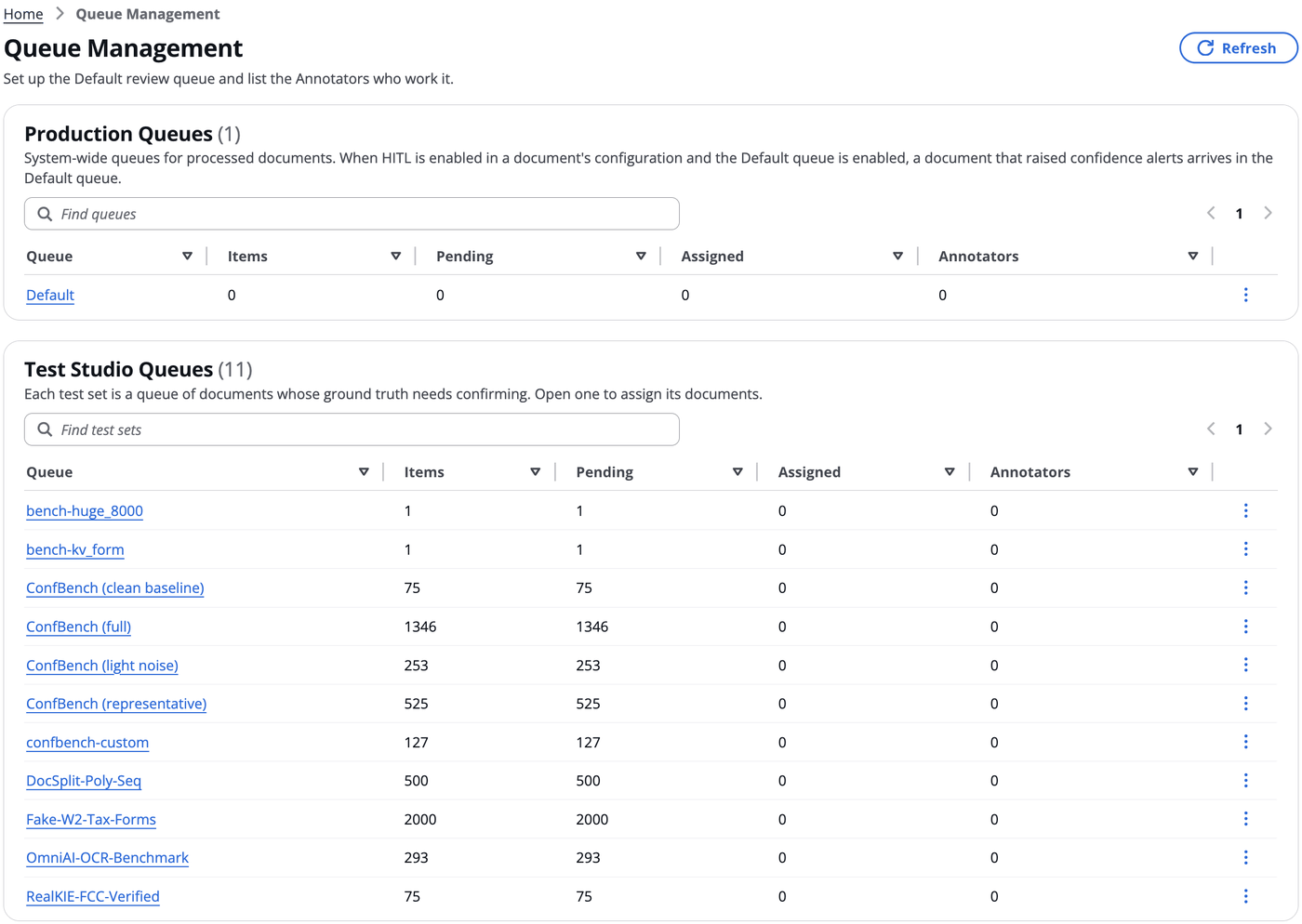
Section titled “Admin guide: Review Management”Review Studio › Review Management is visible to Admins only. It has two tables, Production Queues and Test Studio Queues, shown one at a time: the Production | Test Studio switch beside Refresh chooses which, and only the table shown is kept up to date. A queue’s breadcrumbs (Review Studio › Review Management › {queue}) lead back to the table it is in. Both tables have the same columns: Queue, Items, Pending, Assigned, Annotators and an actions menu. A queue’s other settings, such as its priority and Enabled switch, are in its Settings. The info icon opens a panel describing the page.
Who the Annotators are. Work can be assigned only to members of the Cognito
Annotator group, the same group that authorizes the Annotator’s API calls. A user
joins it when User Management gives them the Annotator role, or when the external
identity provider maps them to it (ExternalIdPAnnotatorGroupName, see
external-idp.md). A user may hold Annotator alongside another
role, Admin for example. A queue’s Eligible Annotators setting is which Annotators
work it:
only the Annotators listed there see the queue in Home › Queues, can claim its
items, and can be assigned them. Reviewers are not listed and not assigned work: each
Reviewer works every Production queue, sees all of them in Home › Queues, and claims and
finishes their items without an Admin, within their configuration-profile scope. A queue with nobody listed has no Annotators until
you add some. Listing an Annotator on a Test Studio queue also gives them access to
that test set. A user added to the group in Cognito directly can be listed at once:
their User Management record is created when they’re first given a test set.
Each row’s actions menu offers View and Settings; a production queue also offers Delete. Each queue’s page has a Settings button too.
If another Admin saves a production queue’s Settings while you have them open,
your Save is refused rather than overwriting their change: the dialog says the
queue was changed by someone else, and Reload queue fills it with the current
settings so you can make your change again. Reloading replaces what you had entered.
Through the API, send back the version that listReviewQueues returned with
updateReviewQueue; a stale one is refused with QUEUE_CHANGED. An update that sends
no version (an older client) replaces whatever is stored when it is made, and is
refused only if another save lands while it is being written.
Production queues are edited in Settings and deleted here. Queue Management has no Create queue: documents are routed to the Default queue, and any other queue that already exists stays listed and usable. Each queue has:
| Setting | Meaning | Default |
|---|---|---|
| Id | Lowercase letters, digits, _, . and - (up to 64 characters). Links and the API refer to the queue by its id | — |
| Name, description | What Admins and Annotators see; the name defaults from the id | — |
| Priority | Higher-priority queues are listed first, and Next item takes from them first (0–100). For information: kept for when there is more than one queue; with only the Default queue it changes nothing yet | 50 |
| Time limit | Minutes after which an Annotator with an open assigned item gets a reminder (1–10080). For information: one reminder is sent, and the item stays assigned | 60 |
| Eligible Annotators | The Annotators who work this queue: they see it, claim its items and can be assigned them. Reviewers work every Production queue without being listed, and claim their own items. Empty means no Annotators (Admins and Reviewers only). Taking an Annotator off the list stops them seeing the queue and claiming from it; items they already hold stay assigned to them until they finish or release them, or you unassign them. A change can take up to 30 seconds to apply everywhere | empty |
| Enabled | When off, no documents are added to the queue | on |
A saved change shows at once on the queue’s page, including its name in the title and the breadcrumb, and in Review Management. | Skip reasons | The reasons an Annotator chooses from to give an item back unfinished, one per line (up to 20) | Needs expert review; Document unclear or incomplete; Conflict of interest; Out of time; Other (see note) |
The Default queue is created automatically, enabled and with nobody listed, and it is created again if it is ever missing; a Default queue that already exists keeps its settings. Add Annotators in Settings; see Turning review queues on. It is the only queue that can’t be deleted. All routing goes to Default, so the Enabled switch of any other queue is stored but not used for routing; items reach other queues when an Admin moves them there.
Upgrading. A stack that already has a Default queue keeps its Enabled setting: if it was off, turn it on in Review Management. Documents from profiles with HITL off are no longer queued.
Deleting a queue that still holds items moves them to the Default queue, and the confirmation says how many will move: open and assigned items become unassigned there (an assignee is told), and items still waiting for their first run to finish are activated in Default. Deleting is refused while one of the queue’s items is being finalized; try again a minute later. The queue is deleted before its items move, so a delete that is refused has moved nothing. If one stops part-way, the queue stays listed as no longer defined while it still holds open or assigned items, and deleting it again moves them; items still waiting for their first run are activated in Default either way. An Escalation queue that an earlier release created is an ordinary queue and can be deleted.
Both tables, Production Queues and Test Studio Queues, show for each queue:
| Column | Meaning |
|---|---|
| Documents | Everything in the queue (for a test set, its documents) |
| Pending | Not yet assigned |
| Assigned | Assigned to an Annotator, whether or not they’ve started on it |
| Annotators | How many Annotators are listed in the queue’s Eligible Annotators (the names on hover). A change in Settings shows as soon as the dialog closes |
The top of each queue’s page, Queue Progress, is a bar of the documents an Annotator is working on: assigned or in progress, of all the queue’s documents (a finished document leaves the queue). Key Metrics below it shows Pending, Assigned (not started yet), In Progress (the Annotator has saved work), Annotators (how many are listed) and Priority. The Annotators table lists each listed Annotator, and anyone still holding the queue’s documents, with how many documents each is assigned. The Documents table shows each item’s Document, Source, Queue, Priority, State and Annotator (who it is assigned to; sortable), with its actions in the row menu. The info icon opens a panel describing the page.
To work a queue, open its page, select items, and choose Assign to… or Unassign above the Documents table, or one of the actions in its More actions menu, grouped as Queue (Move…, Remove from queue…) and Skip reviews (Skip All Reviews (N), Skip All Reviews by profile…):
- Assign to… picks one of the queue’s Annotators. The item appears in their Tasks and they get an Inbox message. Assigning an item that already has an assignee reassigns it.
- Unassign returns the item to the queue. Its draft is kept, and the former assignee is told.
- Move… sends the item to another queue. It is unavailable when there is no other queue.
- Remove from queue… (for items waiting or assigned) asks for confirmation and
an optional note, then takes the item out of review: the document ends
COMPLETEDwith its machine output, no draft is applied, and the review status object is deleted. An assignee is told. The note is optional and is kept in the item’s history. - Skip All Reviews (N) and Skip All Reviews by profile… finish items with their machine output, like Remove, but with a required reason, and are recorded as Skipped (Skip All Reviews) in each item’s history. Reviewers have them too, for items waiting for review and their own claims; an Admin can skip any waiting or assigned item. See bulk Skip All Reviews.
- An item that someone created with Send to review shows Sent to review with its reason in the item’s Review Reason panel; it is worked like any other item. See Send to review.
Test Studio queues come from test sets: each test set is a queue, created and deleted with the set. Its page shows Queue Progress, a bar of the documents completed, and Key Metrics: Status (percent of documents completed), Pending, Assigned and Annotators, then the label-accuracy estimate (Estimated label accuracy and Evidence) once there is one. For an Admin, the Annotators table follows, as on a Production queue’s page. Below that are the draft-labeling status, the ground-truth version being annotated toward, and every document, worst first, with columns Document, Labels, Confidence and Annotator (who it is assigned to). Sorting by Annotator groups each person’s documents, worst first within each, with unassigned documents last. The document list filters to All documents, Assigned or Not assigned, and opens on Not assigned, which is exactly the documents that can still be claimed. Each row’s menu offers View (the source document), Edit, and for Admins Assign and Delete (removes the document from the test set, after a confirmation). An Admin can also select several documents and choose Assign to… to give them all to one Annotator, or Unassign to take them back. Every document can be assigned, including authored ground truth: the Annotator checks or corrects its labels and completes it. A document with no labels yet needs draft labels first. Assigning a document also gives the Annotator access to that test set.
A Test Studio queue’s Settings are the production settings less the id, name and Enabled switch (its documents come from the set, not from the pipeline): description, priority, time limit (the reminder), skip reasons and Eligible Annotators. They are kept with the test set.
A Test Studio queue loads quickly because each document’s summary (label source,
alert count, lowest confidence, classes, sections, assignee, reviewed) is kept in
DynamoDB, in the stack’s HITLTable, while the labels and documents stay in S3. The
queue page reads only the summaries; it never reads a set’s labels. Review Management
lists every test set in one call from the counts stored with each set (documents,
reviewed, assigned), refreshed every 20 seconds; a set still being summarized shows
Preparing… in its counts.
The summaries are built in the background, by the same Lambda that copies documents into a test set:
- when documents are copied into a set, at the end of the copy;
- when a set has none yet, or its labels were cleared, reset or removed as a whole. Opening Review Management or the queue page requests the build.
While a build runs, the queue page says Preparing this queue and refreshes itself until it finishes. A large set takes a few minutes once. A single document’s summary is updated when its labels are saved, when it is re-extracted, and when a draft-labeling run writes its draft.
Working an item as an Admin
Section titled “Working an item as an Admin”Open an item from its queue’s page. Its breadcrumbs read Home, then the queue’s name, then the document, and the queue links back to its page.
- An unassigned item says Not assigned yet. Editing it, or choosing Process Changes, assigns it to you. You can edit it straight away: your first saved edit, or Process Changes, assigns the item to you first. If an Annotator claimed it a moment earlier, the screen says who and turns view-only.
- An item assigned to someone else is view-only, with Take over. Taking over assigns the item to you, keeps its draft so you carry on from the Annotator’s edits, and tells the former assignee in their Inbox. Then you can edit and reprocess it.
- An item assigned to you has Process Changes and Skip, as for an Annotator.
Reviewing from the document page
Section titled “Reviewing from the document page”While a document is in a review queue (status In Review), it is reviewed from its queue item:
- The document page’s Review Owner is the queue item’s assignee: it is filled in when the item is claimed, assigned, reassigned or taken over, cleared when it goes back to the queue, and kept once the review finishes. Review Completed By is whoever finished it, filled in once its corrections have been applied.
- The document page’s Edit and Edit Data in a section row’s ⋮ menu open the document’s edit page, which shows the queue item for Admins, Annotators and Reviewers, the roles that can open queue items. For other roles it opens the direct edit, read-only, saying the document is edited in its queue.
- The document page’s change actions (More Actions › Edit Page Grouping,
Re-extract Sections, Edit Page Text, Reset Page Class, Use As Evaluation
Baseline) are disabled, with the reason that the document is in a review queue;
correct and regroup the document from its queue item. The server refuses the same
changes too: a regroup by anyone but the queue item’s holder, and processing changes
on a document in review. Skip All Reviews is shown disabled with the reason
that the document is in a review queue, and Start Review isn’t offered; skip
queue items in bulk from the queue’s page or the Document List’s Review menu.
A direct upload of the
document’s section results (
uploadDocument) is refused as well, withQUEUE_MANAGED. - In the document list, the In Review status links to the document’s edit page for Admins and Annotators.
Once the review finishes, the document page can be edited as usual. The edit page’s Process Changes on a finished review is refused to every caller who is not an Admin; for an Admin it doesn’t mark the review completed again or replace the reviewer the queue recorded.
Turning review queues on
Section titled “Turning review queues on”- Give people the Annotator role in User Management, which adds them to the
Cognito Annotator group. With an external identity provider, you can map a group
instead with
ExternalIdPAnnotatorGroupName(see external-idp.md). An Annotator’sallowedConfigVersionslimits which profiles’ Production items they can see and work: a queue holds items of several profiles, and each item’s own profile decides, in the queue lists as when it is opened or claimed. - Turn on HITL in each Configuration Profile whose documents should be
reviewed (
hitl.enabled), and sethitl.confidence_threshold, the threshold for fields with none of their own. - Check the Default queue. In Review Studio › Review Management, open the Default queue’s Settings, make sure Enabled is on, and list the Eligible Annotators. A change applies to documents processed after it (definitions are cached for about 30 seconds).
- What decides routing. The confidence alerts decide it: a field’s own
threshold in the class schema (
x-aws-idp-confidence-threshold), otherwisehitl.confidence_threshold, the same thresholds that drive the alerts and field highlights (see extraction-and-confidence.md). Without confidence scoring, only BDA’s blueprint confidence can queue a document.
Turning the Default queue off, or HITL off in a profile, stops new documents from being queued; items already in review stay there and can be finished. Headless deployments have no review queue resources and always use the legacy HITL flow.
Review status for downstream consumers
Section titled “Review status for downstream consumers”Each routed document has one status object,
s3://<OutputBucket>/<documentKey>/review/status.json. Its status is
in_review at first, then complete or rejected. When an Admin removes the
document from review, or its review is withdrawn, the object is deleted. It is written last, after
the tracking status, the reporting rows and the final manifest. The OutputBucket
sends S3 events to EventBridge, so a consumer can trigger on that key instead of
polling for COMPLETED. The SDK and CLI report the same value as review_status.
The full contract, including the schema, the ordering, sequence and an
EventBridge rule pattern, is in the
review queues module README.
A batch watched with idp-cli run-inference --monitor or idp-cli status --wait,
or polled through the SDK’s batch.get_status, counts a document held in a queue
as awaiting review and stops waiting once nothing else is queued or running.
See IDP CLI and
IDP SDK.
Limits and behaviour to know
Section titled “Limits and behaviour to know”REJECTEDis a terminal status, but it isn’t success: the SDK counts it as failed and the CLI exits 1.- While review queues are on, the hooks before the review point (preprocessing, post-OCR, post-classification, post-extraction) run in both the first run and the finalize run, so they must be idempotent.
- Reprocessing, aborting or deleting a document in review withdraws its review and deletes the status object.
- Documents processed by a Test Studio run are never held in a production review queue, whatever the Default queue’s settings. Test runs are scored on the machine’s output, and their documents are reviewed in the test set’s own queue instead.
- The legacy Document List Start Review flow is separate from review queues and works as before for users who have the Document List. A Reviewer with no Admin, Author or Viewer role works from Home › Queues and Home › Tasks instead.
- The Integration API and IDP Monitor don’t yet distinguish review states.