

Human-in-the-Loop (HITL) Review
Human-in-the-Loop (HITL) Review
Section titled “Human-in-the-Loop (HITL) Review”Copyright Amazon.com, Inc. or its affiliates. All Rights Reserved. SPDX-License-Identifier: MIT-0
Table of Contents
Section titled “Table of Contents”- Overview
- Architecture
- User Management
- Workflow
- Configuration
- Review Portal
- Best Practices
- Troubleshooting
Overview
Section titled “Overview”The GenAI-IDP solution supports Human-in-the-Loop (HITL) review capabilities through a built-in review system integrated directly into the Web UI. This feature enables human reviewers to validate and correct extracted information when the system’s confidence falls below a specified threshold, ensuring accuracy for critical document processing workflows.
Supported Patterns:
- Pattern 1: BDA processing with HITL review
- Pattern 2: Textract + Bedrock processing with HITL review
Key Features:
- Built-in review portal within the GenAI-IDP Web UI
- Role-based access control with Admin and Reviewer personas
- Review ownership model - reviewers claim documents before editing
- Section-by-section review workflow
- Visual editor for viewing and correcting extracted data
- Decoupled from document processing workflow for improved reliability
Architecture
Section titled “Architecture”The HITL system operates independently from the document processing workflow:
- Built-in Review Portal: Web interface integrated into the GenAI-IDP UI for validation and correction
- User Management: Cognito-based authentication with role-based access control
- Section Review Tracking: DynamoDB-based tracking of review progress per document section
- Decoupled Design: HITL operations update document status directly without triggering reprocessing
Review Flow
Section titled “Review Flow”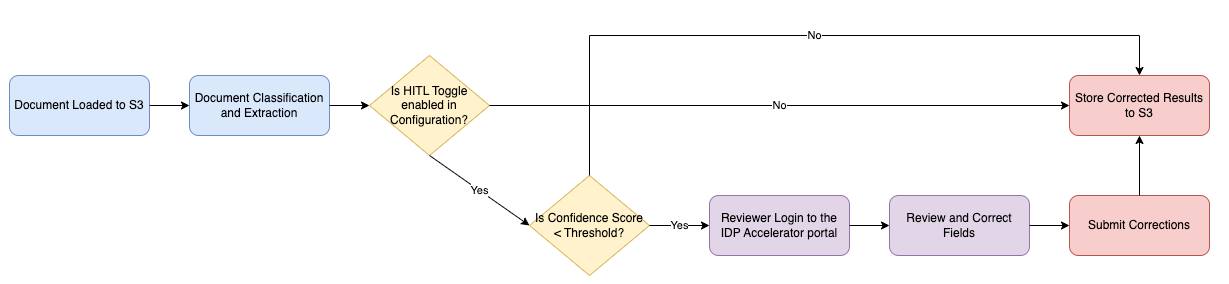
User Management
Section titled “User Management”User Personas
Section titled “User Personas”The system supports two user personas with different permission levels:
Admin Persona
Section titled “Admin Persona”Admins have full access to all system features:
| Feature | Access |
|---|---|
| View Documents | ✅ Full access |
| Upload Documents | ✅ Allowed |
| View/Edit Extraction Results | ✅ Full access |
| Complete Section Reviews | ✅ Allowed |
| Skip All Reviews | ✅ Allowed (Admin only) |
| Release Any Review | ✅ Allowed (can release reviews owned by others) |
| View/Edit Configuration | ✅ Full access |
| User Management | ✅ Full access (create/delete users) |
| Discovery | ✅ Full access |
| Analytics & Agents | ✅ Full access |
Reviewer Persona
Section titled “Reviewer Persona”Reviewers have limited access focused on document review tasks:
| Feature | Access |
|---|---|
| View Documents | ✅ Pending and own in-progress reviews only |
| Upload Documents | ❌ Not allowed |
| Start Review | ✅ Claim ownership of pending documents |
| View/Edit Extraction Results | ✅ Can view and edit (only for owned documents) |
| Complete Section Reviews | ✅ Allowed (only for owned documents) |
| Release Review | ✅ Can release own reviews only |
| Skip All Reviews | ❌ Not allowed (Admin only) |
| View/Edit Configuration | ❌ Not allowed |
| User Management | ❌ Not allowed |
| Discovery | ❌ Not allowed |
| Analytics & Agents | ❌ Limited access |
Note: Reviewers see only documents that are pending review (unassigned) or documents they have claimed for review.
Managing Users
Section titled “Managing Users”User management is available to Admin users through the Web UI.
Accessing User Management
Section titled “Accessing User Management”- Log in to the GenAI-IDP Web UI with Admin credentials
- Navigate to User Management in the left navigation menu
- View the list of all users with their email, persona, and status
Creating a New User
Section titled “Creating a New User”- Click the Create User button
- Enter the user’s email address
- Select the persona:
- Admin: Full system access
- Reviewer: Limited access for document review
- Click Create
The system will:
- Create a user record in DynamoDB
- Create a corresponding user in Cognito
- Add the user to the appropriate Cognito group (Admin or Reviewer)
- Send a temporary password to the user’s email
Deleting a User
Section titled “Deleting a User”- Find the user in the user list
- Click the Delete button in the Actions column
- Confirm the deletion
The system will remove the user from both DynamoDB and Cognito.
User Synchronization
Section titled “User Synchronization”The system automatically synchronizes users between Cognito and DynamoDB:
- Existing Cognito users are synced to DynamoDB when the user list is loaded
- User persona is determined by Cognito group membership
- Users in the “Admin” group are assigned Admin persona
- All other users are assigned Reviewer persona
Workflow
Section titled “Workflow”Review Status Values
Section titled “Review Status Values”Documents progress through the following Review Status values:
| Status | Description |
|---|---|
| Review Pending | Document is awaiting review, not yet claimed by a reviewer |
| Review In Progress | Document has been claimed by a reviewer and is being reviewed |
| Review Completed | All sections have been reviewed and approved |
| Review Skipped | Admin has skipped all remaining reviews |
1. Automatic Triggering
Section titled “1. Automatic Triggering”HITL review is automatically triggered when:
- HITL feature is enabled in your configuration (
assessment.enable_hitl = true) - Extraction confidence score falls below the configured threshold
- Document status is set to Review Pending
2. Review Process
Section titled “2. Review Process”For Reviewers:
-
View Available Documents: Log in and navigate to the Documents page. You will see only:
- Documents with status Review Pending (available to claim)
- Documents you have claimed with status Review In Progress
-
Start Review (Claim Document):
- Select a document with Review Pending status
- Click Start Review button
- Document status changes to Review In Progress
- You become the review owner
-
Review Sections:
- In the document detail view, locate the Sections panel
- Click View/Edit Data to open the visual editor
- Review and correct extracted key-value pairs
- Click Mark Review Complete for each section
-
Release Review (optional):
- If you need to stop reviewing, click Release Review
- Document returns to Review Pending status
- Another reviewer can claim it
For Admins:
Admins have additional capabilities:
-
Skip All Reviews: Click Skip All Reviews to mark all pending sections as skipped
- Document status changes to Review Skipped
- The Review Completed By field records the admin who skipped
- No reprocessing is triggered
-
Release Any Review: Admins can release reviews owned by other users
3. Result Integration
Section titled “3. Result Integration”When all sections are reviewed or skipped:
- Document status changes to Review Completed or Review Skipped
- Corrected data is saved to S3
- Review Completed By field records who completed/skipped the review
- Review history is recorded with reviewer information and timestamps
Note: Completing or skipping reviews does not automatically trigger document reprocessing. Use the Reprocess button if you need to re-run summarization or evaluation with the corrected data.
Configuration
Section titled “Configuration”Enabling HITL
Section titled “Enabling HITL”HITL can be enabled through two methods:
Method 1: CloudFormation Parameter (Initial Setup)
Section titled “Method 1: CloudFormation Parameter (Initial Setup)”Set the EnableHITL parameter to true during stack deployment or update.
Method 2: Configuration UI (Runtime Toggle)
Section titled “Method 2: Configuration UI (Runtime Toggle)”- Log in as an Admin user
- Navigate to Configuration in the Web UI
- Find the Assessment & HITL Configuration section
- Toggle Enable Human-in-the-Loop (HITL) review to enable/disable
- Click Save to apply changes
Note: Configuration settings take precedence over CloudFormation parameters at runtime.
Confidence Threshold Configuration
Section titled “Confidence Threshold Configuration”The confidence threshold determines when human review is triggered:
- Navigate to Configuration in the Web UI
- Find the Assessment & HITL Configuration section
- Set HITL Confidence Threshold (0.0-1.0):
0.8= 80% confidence threshold (recommended starting point)- Fields with confidence below this threshold trigger HITL review
- Click Save to apply changes
Review Portal
Section titled “Review Portal”Document List View
Section titled “Document List View”For Admins: All documents are visible with their current status.
For Reviewers: Only documents available for review are shown:
- Documents with Review Pending status (available to claim)
- Documents with Review In Progress status owned by the current reviewer
Document statuses displayed:
- Review Pending: Document is awaiting review
- Review In Progress: Document is being reviewed
- Review Completed: All sections reviewed
- Review Skipped: Admin skipped remaining reviews
Section Review Interface
Section titled “Section Review Interface”The section review interface provides:
- Section List: All document sections with review status
- View/Edit Data: Opens the visual editor for a section
- Download Data: Export extraction results as JSON
- Mark Review Complete: Complete the review for a section
Review Actions
Section titled “Review Actions”| Action | Available To | Description |
|---|---|---|
| Start Review | Reviewers, Admins | Claim a pending document for review |
| Release Review | Owner, Admins | Release document back to pending status |
| Skip All Reviews | Admins only | Skip all remaining sections |
| Mark Review Complete | Owner, Admins | Complete review for a section |
Visual Editor
Section titled “Visual Editor”The visual editor provides a comprehensive review experience with a modern tabbed interface:
Navigation Controls
Section titled “Navigation Controls”- Mouse Wheel Zoom: Zoom in/out using the mouse wheel without requiring modifier keys
- Click-and-Drag Panning: Pan around zoomed images by clicking and dragging (cursor shows grab/grabbing state)
- Section Navigation: Use Previous/Next buttons to navigate between document sections without closing the editor
Tabbed Interface
Section titled “Tabbed Interface”Visual Editor Tab
- Split-pane layout with document image (left) and form-based field editing (right)
- Bounding box overlay highlighting field locations on the document
- Color-coded confidence indicators (green=meets threshold, red=below threshold, black=no threshold)
- Inline editing with visual change tracking (✏️ Edited badges)
JSON Editor Tab
- Raw JSON editing for advanced users
- Section filtering with multiselect dropdown to focus on specific sections
- Full JSON validation before saving
Revision History Tab
- Complete audit trail of all edits to the document
- Timestamps showing when edits were made
- Reviewer identification showing who made each change
- Field-level diff information showing exactly what was modified
Editing Features
Section titled “Editing Features”Prediction Editing
- Edit extracted field values directly in the visual editor
- Change tracking with visual indicators (blue left border on modified fields)
- Save changes directly to S3 with proper versioning
- Discard changes button to revert all edits
Evaluation Baseline Editing (when evaluation is enabled)
- Edit baseline (expected) values alongside predictions
- Independent change tracking from predictions (orange left border on modified baseline fields)
- Separate save/discard controls for baseline edits
- Side-by-side comparison of predicted vs expected values
Save & Reprocess Workflow
After making edits to predictions or baselines, you can trigger reprocessing to re-run downstream steps with the updated data:
- Save Your Edits: Click “Save Changes” to persist prediction edits or “Save Baseline” to persist baseline edits to S3
- Trigger Reprocessing: After saving, click the “Reprocess” button (or use the document toolbar “Reprocess” action)
- Automatic Pipeline Execution: The document automatically transitions through processing stages:
SUMMARIZING→ Re-generates document summary using updated extraction dataEVALUATING→ Re-runs evaluation comparing updated predictions against baselinesCOMPLETE→ Processing finished with updated results
- View Updated Results: Once complete, the evaluation scores and comparison results reflect your edits
Key Benefits of Save & Reprocess:
- Iterative Refinement: Make corrections and immediately see how they affect evaluation scores
- Baseline Correction: Fix ground truth errors and re-evaluate without re-uploading documents
- Prompt Tuning Workflow: Edit predictions to match desired output, save as baseline, then use for prompt improvement
- Quality Assurance: Verify that corrections properly resolve evaluation mismatches
Smart Filtering
Section titled “Smart Filtering”- Low Confidence Filter: Toggle to show only fields with confidence scores below threshold
- Evaluation Mismatches Filter: Toggle to show only fields that don’t match baseline (when evaluation enabled)
- Collapsible Tree Navigation: Expand/Collapse All buttons for nested data structures
- Individual Node Toggle: Click ▶/▼ to expand or collapse specific objects/arrays
Evaluation Comparison Mode
Section titled “Evaluation Comparison Mode”When evaluation data is available:
- Side-by-side display of prediction and baseline values for each field
- Match indicators showing ✓ Match or ⚠ Mismatch status
- Evaluation scores and LLM-generated comparison reasons
- Aggregate scores for nested groups and arrays
Best Practices
Section titled “Best Practices”Review Management
Section titled “Review Management”- Claim Before Editing: Always use “Start Review” to claim a document before making edits
- Process Promptly: Review documents promptly to avoid backlogs
- Release If Unavailable: Release reviews if you cannot complete them so others can take over
- Consistent Standards: Establish consistent correction guidelines across reviewers
- Quality Checks: Implement spot-checks on completed reviews for quality assurance
Threshold Optimization
Section titled “Threshold Optimization”- Start Conservative: Begin with higher thresholds (0.8-0.9) and adjust based on accuracy needs
- Monitor Patterns: Track which document types trigger reviews most frequently
- Iterative Refinement: Use review corrections to improve extraction prompts
User Management
Section titled “User Management”- Least Privilege: Assign Reviewer persona to users who only need review access
- Admin Oversight: Limit Admin access to users who need full system control
- Regular Audits: Periodically review user list and remove inactive users
Troubleshooting
Section titled “Troubleshooting”Common Issues
Section titled “Common Issues”Documents Not Triggering HITL:
- Verify HITL is enabled in Configuration
- Check confidence threshold settings
- Ensure extraction confidence scores are being calculated
Cannot Start Review:
- Verify document is in Review Pending status
- Check if document is already claimed by another reviewer
- Ensure you have Reviewer or Admin persona
Cannot Complete Section Review:
- Verify you are the review owner or have Admin persona
- Check if section is already completed
- Ensure all required fields are filled
User Cannot See Documents:
- Reviewers only see pending documents and their own in-progress reviews
- Verify user is in the correct Cognito group
- Check user persona in User Management
- Clear browser cache and re-login
Estimated Cost Shows Zero After Start Review:
- This issue has been fixed - HITL operations no longer re-serialize document data
- If still occurring, ensure you have the latest deployment
Monitoring
Section titled “Monitoring”Monitor HITL performance through:
- CloudWatch Metrics: Track review completion rates
- Web UI Dashboard: View document processing status
- DynamoDB: Query HITLReviewHistory for audit trails
Review History
Section titled “Review History”Each completed review is recorded with:
- Section ID
- Reviewer username and email
- Review completion timestamp
- Action taken (complete, skip_all)
Query the tracking table for HITLReviewHistory to audit review activities.
The Review Completed By field in the document list shows who completed or skipped the review.