

Agent Companion Chat
Copyright Amazon.com, Inc. or its affiliates. All Rights Reserved. SPDX-License-Identifier: MIT-0
Agent Companion Chat
Section titled “Agent Companion Chat”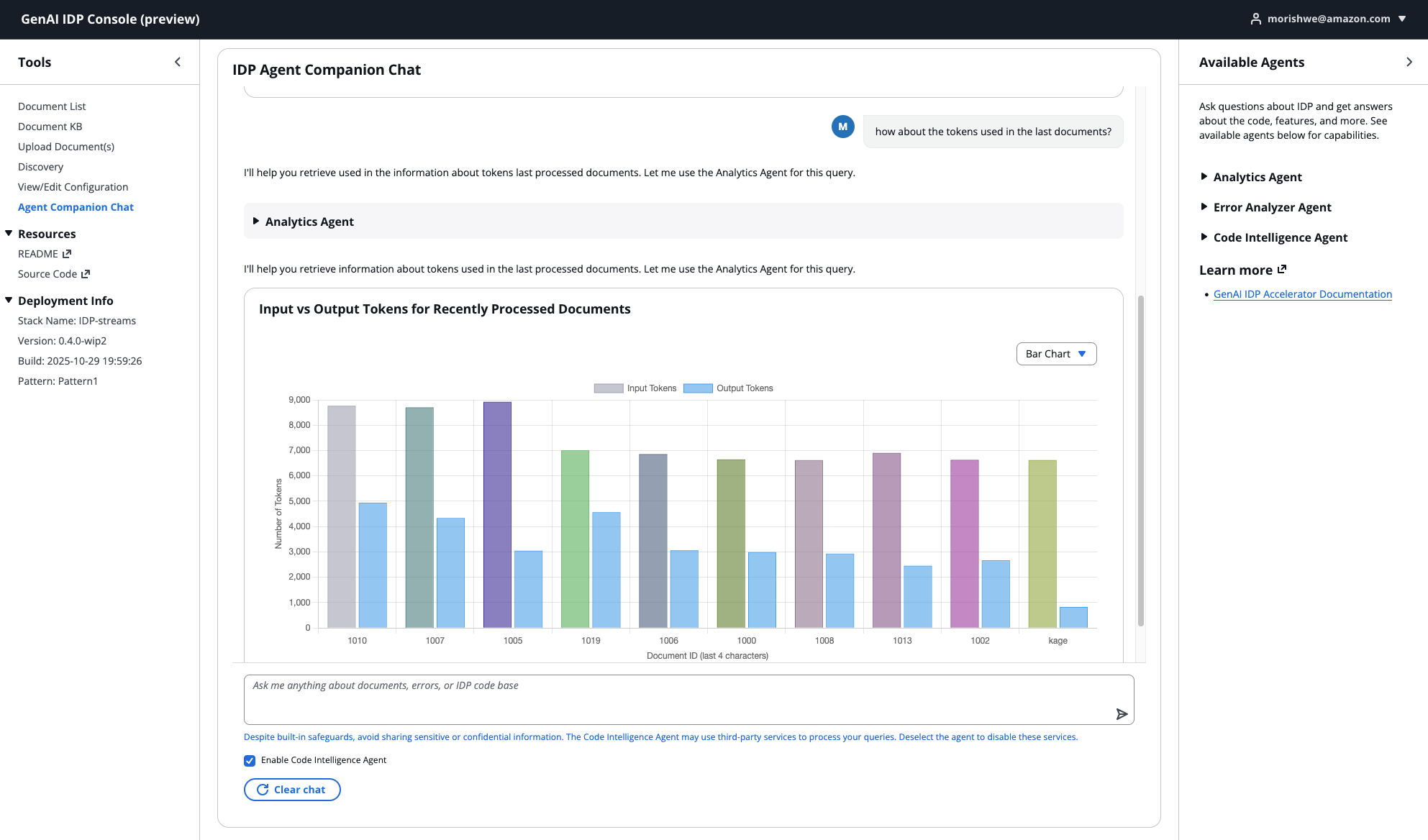
The GenAI IDP Accelerator includes an integrated Agent Companion Chat feature that provides an interactive AI assistant interface for conversational exploration of your document processing system. This feature enables you to have natural, multi-turn conversations with specialized AI agents that can help with analytics, troubleshooting, code assistance, and general questions about the system.
Overview
Section titled “Overview”The Agent Companion Chat provides an intelligent conversational interface through:
- Multi-Turn Conversations: Persistent chat sessions with conversation history and context awareness
- Specialized Agents: Multiple AI agents optimized for different tasks (Analytics, Error Analyzer, Code Intelligence, MCP)
- Intelligent Orchestration: Automatic routing of queries to the most appropriate specialized agent
- Real-Time Streaming: Live responses with progressive content delivery as the agent thinks
- Structured Data Visualization: Automatic rendering of charts, tables, and formatted data
- Tool Usage Transparency: See when agents use tools and call sub-agents in real-time
- Session Persistence: Conversations are saved and resume where you left off
- Sample Prompts: Pre-defined queries to help you get started quickly
- Privacy Controls: Optional Code Intelligence with user consent for external services
- CLI & SDK Access: Use the same agents from the terminal via
idp-cli chator programmatically viaIDPClient.chat— see IDP CLI chat command
Updated Demo Video: https://github.com/user-attachments/assets/c48b9e48-e0d4-457c-8c95-8cdb7a9d332b
Original Demo Video (Agent Analysis): https://github.com/user-attachments/assets/e2dea2c5-5eb1-42f6-9af5-469afd2135a7
- Much of the core functionalities of the original Agent Analysis tab stay the same here in Agent Companion Chat but now we support multi-turn conversational experience instead.
Key Features
Section titled “Key Features”- Session-Based Architecture: Unlike the job-based troubleshooting system, the companion chat maintains persistent conversation sessions
- Conversation Memory: Remembers the last 20 turns of your conversation for natural follow-up questions
- Multi-Agent Coordination: Can consult multiple specialized agents for complex queries
- Sub-Agent Streaming: Watch in real-time as the orchestrator calls specialized agents
- Structured Data Detection: Automatically visualizes charts, tables, and formatted code
- Code Intelligence Integration: Optional third-party MCP server integration for enhanced code assistance
- Secure Architecture: All conversation data stored in your AWS account with optional external service controls
- Real-time Progress: Live display of agent thought processes and tool executions
- Error Handling: Intelligent error messages and recovery suggestions
Security and Privacy
Section titled “Security and Privacy”Code Intelligence and Third-Party Services
Section titled “Code Intelligence and Third-Party Services”⚠️ IMPORTANT: Read Before Using Code Intelligence
The Agent Companion Chat includes an optional Code Intelligence Agent that can provide enhanced code assistance and technical documentation. However, this agent uses third-party MCP (Model Context Protocol) servers, which means your queries may be sent to external services.
What This Means:
- When Code Intelligence is enabled, queries routed to this agent may be sent to external services (DeepWiki MCP server)
- These external services are not controlled by AWS or your organization
- Data sent to these services is subject to their privacy policies and terms of service
Security Best Practices:
✅ Safe to Discuss:
- General IDP features and capabilities
- Public documentation and configuration examples
- Generic code patterns and best practices
- Non-sensitive technical questions
- Publicly available information
❌ DO NOT Share:
- Customer names, email addresses, or personal information
- AWS account IDs, API keys, credentials, or secrets
- Proprietary business logic or confidential data
- Internal system details or security configurations
- Actual document content or extracted data
- Customer-specific information or use cases
- Private network configurations or IP addresses
Built-in Protections:
- System prompts are configured to prevent the agent from sending sensitive data
- The agent is instructed to refuse requests involving credentials or personal information
- User-controlled toggle allows you to disable the feature entirely
Recommendations:
- Keep Code Intelligence disabled by default unless you specifically need code assistance
- Review your questions before sending to ensure they contain no sensitive information
- Use other agents (Analytics, Error Analyzer) for queries involving your actual system data
- Enable only when needed for generic code help, then disable it again
Data Storage and Retention
Section titled “Data Storage and Retention”Conversation History:
- All conversations are stored in DynamoDB within your AWS account
- Conversation history is retained for the duration of your session
- Data remains within your AWS environment and is subject to your AWS security policies
- No conversation data is sent to external services except when Code Intelligence is enabled and invoked
Session Isolation:
- Each conversation has a unique session ID
- Sessions are isolated from each other
- Clearing chat creates a new session
- Previous session data is not accessible from new sessions
Architecture
Section titled “Architecture”The Agent Companion Chat uses a session-based architecture that differs fundamentally from the job-based document troubleshooting system. The architecture includes conversation memory, real-time streaming, and intelligent agent orchestration.
System Components
Section titled “System Components”User → Web UI → AppSync GraphQL API → Lambda Functions: ├── agent_chat_resolver (Entry point) └── agent_chat_processor (Agent execution) ↓ Agent System: ├── Orchestrator Agent (Router) ├── Analytics Agent ├── Error Analyzer Agent ├── Code Intelligence Agent (Optional) └── External MCP Agents (Optional) ↓ Storage: ├── ChatMessagesTable (Message storage) └── ChatMemoryTable (Conversation history) ↓Results ← Web UI ← AppSync Subscription ← Real-time UpdatesArchitecture Transformation
Section titled “Architecture Transformation”The companion chat introduces a fundamentally different interaction model from the original Agent Analysis feature:
| Component | Agent Analysis (Original) | Agent Companion Chat (New) |
|---|---|---|
| Interaction Model | Single-shot query/response | Multi-turn conversation |
| Context | Job-based (one request → one response) | Session-based with history |
| Memory | Stateless | Persistent (last 20 turns) |
| Agent Selection | User selects agents before query | Orchestrator routes automatically |
| Lambda Functions | agent_request_handler, agent_processor | agent_chat_resolver, agent_chat_processor |
| Storage | Job results in AgentJobsTable | Messages in ChatMessagesTable + ChatMemoryTable |
| Streaming | Final result only | Real-time progressive updates with sub-agent visibility |
| Follow-up Questions | Not supported (each query independent) | Supported (remembers conversation context) |
| UI Location | Agent Analysis page | Agent Chat page |
| GraphQL Operations | submitAgentQuery, getAgentJobStatus | sendAgentChatMessage, onAgentChatMessageUpdate |
Multi-Agent System
Section titled “Multi-Agent System”The Agent Companion Chat uses a multi-agent architecture with:
- Orchestrator Agent: Routes queries to appropriate specialized agents based on query content
- Analytics Agent: Handles data analysis, metrics, and reporting queries
- Error Analyzer Agent: Diagnoses and troubleshoots document processing failures
- Code Intelligence Agent: Provides code-related assistance and technical documentation (optional)
- External MCP Agents: Custom agents connected via Model Context Protocol servers
Conversation Memory System
Section titled “Conversation Memory System”DynamoDB Memory Provider:
- Stores conversation history in
ChatMemoryTable - Automatically loads last 20 turns on agent initialization
- Groups messages into turns for efficient context management
- Handles 350KB DynamoDB item limits with automatic item creation
- Truncates large messages (8.5KB limit per message)
Conversation Manager:
- Implements sliding window management (20 turns default)
- Drops verbose internal tool results while preserving sub-agent responses
- Keeps conversation within model context limits
- Maintains conversation coherence by preserving key information
Real-Time Streaming
Section titled “Real-Time Streaming”Messages stream in real-time using AWS AppSync GraphQL subscriptions:
Streaming Flow:
- User sends message via GraphQL mutation
- Message stored in ChatMessagesTable
- agent_chat_processor invoked asynchronously
- Agent loads conversation history from ChatMemoryTable
- Agent processes query and streams response chunks
- Chunks published via AppSync subscription
- UI displays chunks progressively
- Complete turn saved to ChatMemoryTable
Benefits:
- Users see responses immediately as they’re generated
- No waiting for complete response before seeing anything
- Transparent view of agent thinking process
- Better user experience for long responses
Security Architecture
Section titled “Security Architecture”The Agent Companion Chat implements a security-first design:
- Session Isolation: Each conversation has a unique session ID with isolated data
- Data Encryption: All data encrypted at rest in DynamoDB
- Access Control: AWS Cognito authentication required for all operations
- Audit Trail: Comprehensive logging and monitoring for security reviews
- Optional External Services: Code Intelligence requires explicit user consent
- Minimal Permissions: Each component requests only necessary AWS permissions
Available Agents
Section titled “Available Agents”Orchestrator Agent
Section titled “Orchestrator Agent”Purpose: Routes queries to appropriate specialized agents and coordinates multi-agent workflows
Capabilities:
- Intelligent query routing based on content analysis
- Multi-agent coordination for complex queries
- Real-time sub-agent streaming
- Timeout handling per sub-agent (120s default)
- JSON extraction from markdown code blocks
- Structured data detection and signaling
Available Sub-Agents:
- Analytics Agent: Data analysis and reporting queries
- Error Analyzer: Troubleshooting and error diagnosis
- Code Intelligence: Code-related assistance and technical documentation (optional)
- External MCP Agents: Custom tools and systems integrated via MCP servers
System Behavior:
- Only calls each agent once per user query to prevent redundant calls
- Automatically detects when Code Intelligence is disabled
- Provides clear stopping criteria to avoid unnecessary tool usage
Analytics Agent
Section titled “Analytics Agent”Purpose: Handles data analysis, metrics, and reporting queries
What It Can Do:
- Query document processing statistics from Amazon Athena
- Generate reports on system performance
- Analyze processing trends and patterns
- Provide insights on document types and volumes
- Calculate success rates and processing times
- Create interactive visualizations (charts, graphs, tables)
- Execute SQL queries against processed document data
- Generate Python code for data visualization
Example Questions:
"How many documents were processed today?""Show me the success rate for the last week""What are the most common document types?""Generate a report on processing times""Which documents took the longest to process?""What's the average processing time by document type?""Create a chart showing document volume trends""Show me a bar chart histogram of total earnings in W2s""What's the relationship between document size and processing time?"Available Tools:
The Analytics Agent has access to four specialized tools:
-
Database Information Tool
- Discovers database schema and table structures
- Automatically explores available tables and columns
- Provides table names, column definitions, and data types
- Helps agent understand your data structure
-
Athena Query Tool
- Executes SQL queries against the analytics database
- Automatic column name quoting for Athena compatibility
- Query result storage in S3
- Error handling and retry logic
- Supports both exploratory and final queries
-
Code Sandbox Tool
- Securely transfers query results to AWS Bedrock AgentCore sandbox
- Isolated environment with no Lambda file system access
- CSV format for data transfer
- Ensures secure data processing
-
Python Execution Tool
- Generates visualizations and tables from query data
- Uses Pandas, Matplotlib, and other standard Python libraries
- Outputs JSON-formatted charts and tables for web display
- Runs in isolated AgentCore sandbox for security
Workflow:
- Agent explores database schema using Database Info tool
- Converts your question into optimized SQL queries
- Executes queries against Amazon Athena
- Transfers results to AgentCore sandbox
- Generates Python code for visualizations
- Returns formatted charts, tables, or text responses
Security:
- All Python code execution happens in AWS Bedrock AgentCore sandboxes
- Completely isolated from the rest of the AWS environment
- No direct file system access
- Secure data transfer via S3 and AgentCore APIs
For more details on the Analytics Agent capabilities, see the Agent Analysis Documentation.
Error Analyzer Agent
Section titled “Error Analyzer Agent”Purpose: Diagnoses and troubleshoots document processing failures
What It Can Do:
- Diagnose specific document failures
- Analyze system-wide error patterns
- Investigate CloudWatch logs
- Correlate DynamoDB tracking data
- Identify root causes with evidence
- Provide actionable recommendations
Example Questions:
"Why did document lending_package.pdf fail?""Show me recent processing errors""What validation errors occurred today?""Analyze timeout issues in the last hour""What's causing the most failures this week?""Find errors related to Bedrock throttling""Has this error happened to other documents?"Tools Available:
- CloudWatch Logs search and analysis
- DynamoDB tracking table queries
- Step Functions execution history
- Error pattern detection
- Root cause analysis
More information of the agent can be found in error-analyzer.md
Code Intelligence Agent
Section titled “Code Intelligence Agent”Purpose: Provides code-related assistance and technical documentation lookup
What It Can Do:
- Explain code concepts and examples
- Look up technical documentation via DeepWiki MCP server
- Provide programming language assistance
- Show API and library documentation
- Recommend best practices and design patterns
- Generate code examples
Example Questions:
"How do I implement a custom extraction prompt?""Explain the assessment configuration options""What's the best way to handle multi-page documents?""Show me an example of custom validation logic""How do I use the post-processing Lambda hook?""What are the available configuration parameters?"⚠️ Privacy and Security:
- User-Controlled: Toggle on/off in the chat interface
- External Service: Uses DeepWiki MCP server for documentation lookup
- Data Protection: System prompts prevent sending sensitive data externally
- Explicit Consent: Visual indicator shows when enabled
Enabling/Disabling:
- Look for the “Code Intelligence” toggle in the chat interface
- Click to enable or disable
- When disabled, the orchestrator won’t route queries to this agent
- Your preference is saved for the session
- Recommendation: Keep disabled unless you specifically need code assistance and are certain your queries contain no sensitive information
MCP Integration
Section titled “MCP Integration”Purpose: Connect external systems and custom tools via Model Context Protocol (MCP) servers
What It Enables:
- Integration of custom APIs and databases
- Connection to specialized external tools
- Extension of agent capabilities without code changes
- Organization-specific agent functionality
- Third-party service integration
How It Works:
- MCP servers expose tools and resources to agents
- Agents can discover and use MCP tools dynamically
- No redeployment required to add new MCP agents
- Secure communication via MCP protocol
Example Use Cases:
"Query our internal knowledge base for policy information""Check the status of a ticket in our support system""Look up customer information from our CRM""Retrieve data from our custom analytics platform"Setting Up MCP Integration:
For detailed instructions on integrating custom MCP agents, see the Custom MCP Agent Documentation.
Key Benefits:
- No Code Changes: Add new agents without modifying the IDP codebase
- Dynamic Discovery: Agents automatically discover available MCP tools
- Secure Integration: MCP protocol ensures secure communication
- Flexible Architecture: Connect any system that implements MCP protocol
Using Agent Companion Chat
Section titled “Using Agent Companion Chat”Accessing the Feature
Section titled “Accessing the Feature”- Log in to the GenAI IDP Web UI
- Navigate to the Agent Chat section in the main navigation
- The chat interface opens with a welcome message and sample prompts
- Start typing your question or click a sample prompt to begin
Your First Conversation
Section titled “Your First Conversation”The chat interface provides sample prompts to help you get started:
Analytics Questions:
- “How many documents were processed today?”
- “Show me the success rate for the last week”
- “What are the most common document types?”
Error Analysis:
- “Show me recent processing errors”
- “What validation errors occurred today?”
- “Why did document lending_package.pdf fail?”
General Questions:
- “How does the classification stage work?”
- “What models are supported for extraction?”
- “Explain the assessment process”
Code Assistance (if Code Intelligence is enabled):
- “How do I implement a custom extraction prompt?”
- “Show me an example of custom validation logic”
- “What’s the best way to handle multi-page documents?”
Chat Interface Controls
Section titled “Chat Interface Controls”Message Input:
- Type your question in the text box at the bottom
- Press Enter or click Send to submit
- Multi-line input supported (Shift+Enter for new line)
Sample Prompts:
- Click any sample prompt to insert it into the input box
- Prompts are contextual based on available agents
- Edit the prompt before sending if needed
Clear Chat:
- Click the “Clear Chat” button to start a new conversation
- This creates a new session and clears conversation history
- Previous conversations are saved but not accessible in the current session
Code Intelligence Toggle:
- Located near the top of the chat interface
- Shows current status (enabled/disabled)
- Click to toggle on or off
- Changes take effect immediately for new messages
Understanding Responses
Section titled “Understanding Responses”Message Types:
- Text Responses: Standard conversational answers with Markdown formatting
- Structured Data: Automatically rendered charts, tables, or formatted code
- Tool Usage: Expandable sections showing agent tool executions
- Error Messages: Clear error notifications if something goes wrong
Visual Indicators:
- Streaming Dots: Agent is actively generating a response
- Loading Bar: Processing your request
- Tool Icon: Agent is using a tool or calling a sub-agent
- Checkmark: Response completed successfully
- Error Icon: Something went wrong
Tool Usage Transparency
Section titled “Tool Usage Transparency”See exactly what the agent is doing behind the scenes:
Expandable Tool Sections:
- Click to expand and see tool execution details
- View inputs sent to tools
- See outputs returned from tools
- Understand the agent’s reasoning process
Sub-Agent Calls: When the orchestrator calls a specialized agent, you see:
- Which sub-agent is being invoked
- Real-time streaming output from the sub-agent
- Final results from the sub-agent
- Any errors encountered
Example:
🔧 Using Tool: Error Analyzer   Input: "Analyze recent validation errors"
   [Streaming output from Error Analyzer...]   "Searching CloudWatch logs..."   "Found 8 validation errors..."   "Analyzing error patterns..."
   ✓ Complete: Root cause identified
Best Practices
Section titled “Best Practices”Asking Effective Questions
Section titled “Asking Effective Questions”✅ Good Questions:
"Show me documents that failed with validation errors today""How do I configure the extraction model?""What's the average processing time for invoices?""Explain how the assessment stage validates data"❌ Less Effective:
"Help" (too vague)"Errors" (not specific enough)"Fix it" (no context)Using Follow-Up Questions
Section titled “Using Follow-Up Questions”Take advantage of conversation memory:
You: "How many documents failed today?"Agent: "15 documents failed today..."
You: "Show me the first 5"  ← Agent remembers contextAgent: "Here are the first 5 failed documents..."
You: "What caused the first one?"  ← Still in contextAgent: "The first document failed because..."
When to Start a New Conversation
Section titled “When to Start a New Conversation”Start a new chat session when:
- Switching to a completely different topic
- The conversation becomes too long or unfocused
- You want to test the same query without prior context
- You’ve resolved an issue and want a fresh start
Security Best Practices
Section titled “Security Best Practices”- Code Intelligence Usage: Only enable when needed for generic code help
- Data Sensitivity: Avoid sharing sensitive information in queries
- Agent Selection: Use Analytics/Error Analyzer agents for system-specific queries
- Review Questions: Check your questions before sending when Code Intelligence is enabled
Common Use Cases
Section titled “Common Use Cases”Investigating System Health
Section titled “Investigating System Health”Scenario: You want to check if the system is processing documents correctly
You: "How many documents were processed in the last hour?"Agent: "In the last hour, 47 documents were processed with a 94% success rate..."
You: "What about the failures?"Agent: "There were 3 failures: 2 validation errors and 1 timeout..."
You: "Show me details on the timeout"Agent: "The timeout occurred for document large_contract.pdf..."
Troubleshooting Recurring Errors
Section titled “Troubleshooting Recurring Errors”Scenario: Multiple documents are failing with similar errors
You: "Show me validation errors from today"Agent: [Displays table of 8 validation errors]
You: "What do these have in common?"Agent: "All 8 errors involve malformed JSON in extraction prompts..."
You: "How do I fix this?"Agent: "Update your extraction configuration to escape special characters..."
Learning About Features
Section titled “Learning About Features”Scenario: You want to understand how a feature works
You: "How does the assessment stage work?"Agent: "The assessment stage validates extracted data against criteria..."
You: "Can you show me an example configuration?"Agent: [Displays formatted JSON configuration with explanations]
You: "What models can I use for assessment?"Agent: "You can use any of these Bedrock models for assessment..."
Analyzing Performance Trends
Section titled “Analyzing Performance Trends”Scenario: You want to understand processing patterns
You: "Show me processing trends for the last week"Agent: [Displays line chart of daily volumes]
You: "Why was Tuesday so high?"Agent: "Tuesday had 245 documents, which is 3x the daily average..."
You: "What types of documents were processed on Tuesday?"Agent: [Displays pie chart of document types]
Getting Code Examples
Section titled “Getting Code Examples”Scenario: You need help implementing a custom feature (Code Intelligence enabled)
You: "How do I implement a custom extraction prompt?"Agent: "Here's an example of a custom extraction prompt..."       [Displays code with syntax highlighting]
You: "How do I add validation to this?"Agent: "You can add validation by including criteria in your config..."       [Shows updated code example]
Configuration
Section titled “Configuration”Supported Models:
us.anthropic.claude-3-7-sonnet-20250219-v1:0us.anthropic.claude-sonnet-4-20250514-v1:0(Default - Best for complex reasoning)us.anthropic.claude-3-5-sonnet-20241022-v2:0us.amazon.nova-pro-v1:0(AWS native option)us.amazon.nova-lite-v1:0(Lightweight option)
Infrastructure Components
Section titled “Infrastructure Components”The feature automatically creates:
- DynamoDB Tables:
ChatMessagesTable: Stores all chat messagesChatMemoryTable: Stores conversation history (last 20 turns)
- Lambda Functions:
agent_chat_resolver: Entry point for messagesagent_chat_processor: Agent execution and streaming
- AppSync Resolvers: GraphQL API endpoints for web UI integration
- IAM Roles: Minimal permissions for secure operation
Environment Variables
Section titled “Environment Variables”Key configuration settings:
CHAT_MESSAGES_TABLE: DynamoDB table for message storageCHAT_MEMORY_TABLE: DynamoDB table for conversation historyORCHESTRATOR_MODEL_ID: AI model for orchestrator agentANALYTICS_TABLE: DynamoDB table for analytics job trackingATHENA_DATABASE: Database containing processed document dataLOG_LEVEL: Logging verbosity (INFO, DEBUG, ERROR)
Troubleshooting
Section titled “Troubleshooting”Common Issues
Section titled “Common Issues”Agent Not Responding:
Symptoms: Message sent but no response appears
Possible Causes:
- Network connectivity issue
- Backend service temporarily unavailable
- Session expired
Solutions:
- Check your internet connection
- Refresh the page and try again
- Clear chat and start a new session
- Check AWS service health dashboard
Incomplete or Cut-Off Responses:
Symptoms: Response stops mid-sentence or seems incomplete
Possible Causes:
- Token limit reached
- Timeout during processing
- Network interruption
Solutions:
- Ask the agent to continue: “Please continue”
- Rephrase your question to be more specific
- Break complex questions into smaller parts
- Start a new session if conversation is very long
Code Intelligence Not Available:
Symptoms: Code Intelligence toggle is disabled or queries aren’t routed to it
Possible Causes:
- Feature not enabled in deployment
- MCP server not configured
- Toggle manually disabled
Solutions:
- Check if the toggle is enabled in the chat interface
- Verify Code Intelligence is configured in your deployment
- Contact your administrator if the feature should be available
Structured Data Not Rendering:
Symptoms: Charts or tables appear as raw JSON instead of visualizations
Possible Causes:
- Data format not recognized
- Browser compatibility issue
- Rendering error
Solutions:
- Refresh the page
- Try a different browser
- Ask the agent to reformat the data
- Check browser console for errors
Monitoring and Logging
Section titled “Monitoring and Logging”- CloudWatch Logs: Detailed logs for both Lambda functions
/aws/lambda/agent_chat_resolver/aws/lambda/agent_chat_processor
- DynamoDB Console: View messages and conversation history directly
- AppSync Console: Monitor GraphQL API requests and subscriptions
- Agent Messages: Real-time display of agent reasoning in web UI
Performance Optimization
Section titled “Performance Optimization”For Faster Responses:
- Use more specific questions
- Break complex queries into smaller parts
- Start new sessions when conversations get long
For Better Results:
- Provide context in your questions
- Use follow-up questions to refine answers
- Review tool usage to understand agent reasoning
Cost Considerations
Section titled “Cost Considerations”The Agent Companion Chat feature uses several AWS services that incur costs:
- Amazon Bedrock: Model inference costs for agent processing (varies by model and token usage)
- AWS Lambda: Function execution costs for resolver and processor functions
- Amazon DynamoDB: Storage and request costs for messages and conversation history
- AWS AppSync: GraphQL API request and subscription costs
- Amazon CloudWatch: Log storage and monitoring costs
- Amazon Athena: Query execution costs (when Analytics Agent is used)
- AWS Bedrock AgentCore: Code interpreter session costs (when Analytics Agent generates visualizations)
Cost Optimization Tips:
-
Model Selection: Choose appropriate models based on accuracy vs. cost requirements
- Use Claude Sonnet 3.5 for cost-effective general queries
- Reserve Claude Sonnet 4 for complex reasoning tasks
- Consider Nova models for AWS-native cost optimization
-
Conversation Management:
- Start new sessions when switching topics (reduces context size)
- Clear old conversations you no longer need
- Keep questions focused to reduce token usage
-
Code Intelligence:
- Keep disabled when not needed (avoids external MCP costs)
- Use only for generic code questions
-
Monitoring:
- Use AWS Cost Explorer to track usage
- Set up billing alerts for unexpected cost increases
- Review CloudWatch logs to identify inefficient queries
Integration with Other Features
Section titled “Integration with Other Features”The Agent Analysis feature has access to all tables that the GenAIIDP stores in Athena. Therefore it integrates seamlessly with other GenAIIDP capabilities:
Evaluation Framework Integration
Section titled “Evaluation Framework Integration”- Query evaluation metrics and accuracy scores
- Analyze patterns in document processing quality
- Compare performance across different processing patterns
Assessment Feature Integration
Section titled “Assessment Feature Integration”- Explore confidence scores across document types
- Identify low-confidence extractions requiring review
- Analyze relationships between confidence and accuracy
Related Documentation
Section titled “Related Documentation”- Error Analyzer (Troubleshooting Tool) - Document-specific troubleshooting
- Original Agent Analysis doc - The original agent analysis doc
- Agent Analysis Feature - Analytics agent capabilities
- Custom MCP Agent - Integrating external tools
- Code Intelligence - Code Intelligence agent details
- Configuration - System configuration options