Guidance for Video on Demand on AWS
Summary: This implementation guide provides an overview of the Guidance for Video on Demand on AWS, its reference architecture and components, considerations for planning the deployment, configuration steps for deploying the Guidance to the Amazon Web Services (AWS) Cloud.
Overview
The Guidance for Video on Demand on AWS automatically provisions the AWS services necessary to build a scalable, distributed workflow to ingest, store, process, and deliver video content on demand. It ingests metadata files and source videos, processes the videos for playback on a wide range of devices, stores the transcoded media files, and delivers the videos to end users through CloudFront.
This Guidance provides an example architecture to build a global consumer video workflow on AWS. By default, the Guidance can encode MP4, MPG, M4V, M2TS, and MOV files. You can customize the architecture to encode any media file type supported by AWS Elemental MediaConvert. For more information, refer to Customization.
The intended audience for discovering and using this Guidance in their environment includes Guidance architects, business decision makers, DevOps engineers, data scientists, and cloud professionals.
Use this navigation table to quickly find answers to these questions:
| If you want to . . . | Read . . . |
|---|---|
| Know the cost for running this Guidance. | Cost |
| Understand the security considerations for this Guidance. | Security |
| Know how to plan for quotas for this Guidance. | Quotas |
| Know which AWS Regions support this Guidance. | Supported AWS Regions |
The estimated cost for running this Guidance in the us-east-1 (N. Virginia) Region is USD $ 4.23 per month for AWS resources.
Features and benefits
The Guidance provides the following features:
Reference implementation
Leverage the Guidance for Video on Demand on AWS as a reference implementation to automatically provision the AWS services necessary to build a scalable, distributed video-on-demand workflow.
Customization
The Guidance for Video on Demand on AWS leverages AWS Step Functions, which breaks the workflow into individual steps (ingest, processing, and publishing), making it easier to customize or extend the architecture for your specific video-on-demand needs.
Digital Rights Management
With this Guidance, you can also choose to use AWS Elemental MediaPackage for packaging content into different formats and to apply digital rights management (DRM). MediaPackage can reduce storage costs for the outputs; however, there is a trade-off between packaging costs and storage costs.
Integration with AWS Service Catalog AppRegistry and AWS Systems Manager Application Manager
This Guidance includes a Service Catalog AppRegistry resource to register the Guidance’s CloudFormation template and its underlying resources as an application in both AWS Service Catalog AppRegistry and AWS Systems Manager Application Manager. With this integration, you can centrally manage the Guidance’s resources and enable application search, reporting, and management actions.
Use cases
Streaming Media
As consumer demand for video streaming increases, media and entertainment companies are looking for secure and reliable web-based video streaming alternatives to traditional television. Video on Demand on AWS deploys a Guidance that automatically provisions the services necessary to build a scalable, distributed architecture that ingests, stores, processes, and delivers video content. Using this Guidance, you can avoid inefficient trial-and-error approaches, and save on time and costs for your streaming media projects.
Educational Content Delivery
Professional development and educational initiatives create incentives for non-profit members, and can be important revenue generators for nonprofit organizations. Video on Demand on AWS can help you create modern, scalable content delivery and learning management systems (LMS) to support your membership and programming offerings. The Guidance streamlines the processes for delivering online training and learning content.
Concepts and definitions
This section describes key concepts and defines terminology specific to this Guidance:
Application
A logical group of AWS resources that you want to operate as a unit.
Common Media Application Format (CMAF)
An HTTP-based streaming and packaging standard to improve delivery of media over the internet which is compatible with HLS and DASH and co-developed by Apple and Microsoft.
DRM
Digital Rights Management is a technology used to control and manage access to copyrighted material.
Dynamic Adaptive Streaming over HTTP (DASH)
An HTTP-based streaming protocol (also known as MPEG-DASH) to deliver media over the internet and developed under Motion Picture Experts Group (MPEG).
HTTP Live Streaming (HLS)
An HTTP-based streaming protocol to deliver media over the internet developed by Apple Inc.
QVBR
Quality-Defined Variable Bitrate is a video encoding technology that uses fewer bits in low-complexitiy periods of content and more bits during high-complexity periods (up to the maximum bitrate) to deliver consistently high video quality.
Thumbnails
Files created by taking still images of the original video file.
Workflow
Generated state machines that run a number of operations in sequence.
For a general reference of AWS terms, see the AWS glossary in the AWS General Reference.
Architecture overview
The AWS CloudFormation template deploys a workflow that ingests source videos, or source videos and metadata files. When you upload a source video only, encoding options are defined in the AWS CloudFormation template at launch, and are applied to every video the Guidance encodes. When you upload a source video and metadata file, encoding parameters for each source video are defined in the metadata file, allowing customers to apply encoding options on a video-by-video basis.
This section provides a reference implementation architecture diagram for the components deployed with this Guidance.
Architecture diagram
Deploying this Guidance with the default parameters deploys the following components in your AWS account.
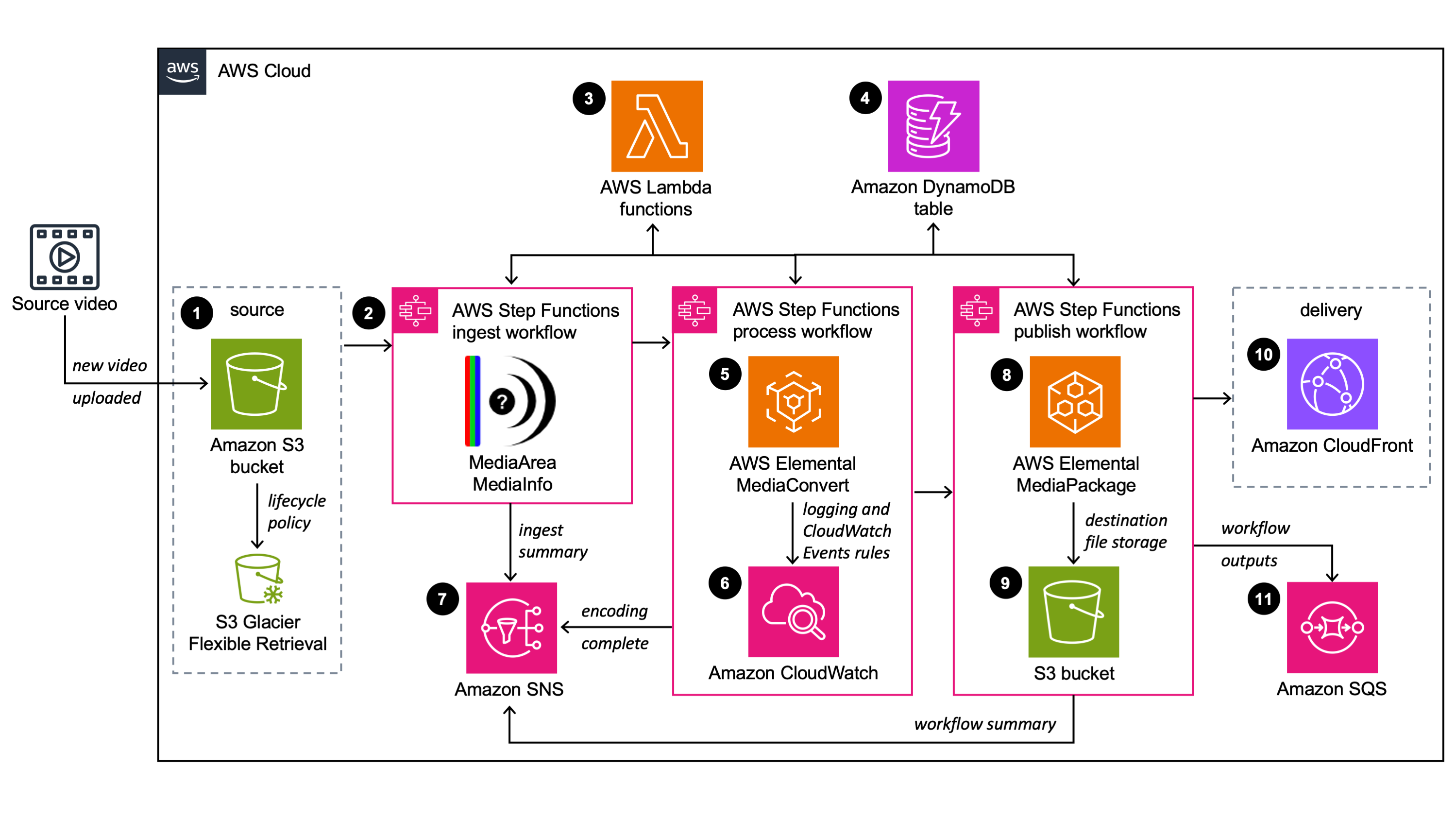
Figure 1: AWS Architecture
Video on Demand on AWS architecture
The high-level process flow for the Guidance components deployed with the AWS CloudFormation template is as follows:
An Amazon S3 bucket for source media files. Content is eventually stored in Amazon S3 Glacier according to the Amazon S3 lifecycle policy.
AWS Step Functions , which creates ingest, processing, and publishing step functions.
AWS Elemental MediaConvert to transcode media files from their source format.
AWS Lambda functions that perform the work of each step, and process error messages. For a description of the 10 Lambda functions, refer to the README.md file on GitHub.
An Amazon DynamoDB table stores data captured through the workflow.
Amazon CloudWatch for logging and Amazon CloudWatch Events rules for AWS Elemental MediaConvert notifications.
Amazon SNS topics to send encoding, publishing, and error notifications.
AWS Elemental MediaPackage (optional) to create video streams formatted to play on several devices from a single video input, and protect content from unauthorized use through content encryption and digital rights management.
An Amazon S3 bucket for storing destination media files.
An Amazon CloudFront distribution to deliver your video content to end users.
An Amazon SQS queue to capture the workflow outputs.
AWS Well-Architected design considerations
This Guidance uses the best practices from the AWS Well-Architected Framework, which helps customers design and operate reliable, secure, efficient, and cost-effective workloads in the cloud.
This section describes how the design principles and best practices of the Well-Architected Framework benefit this Guidance.
Operational excellence
This section describes how we architected this Guidance using the principles and best practices of the operational excellence pillar.
Guidance for Video on Demand on AWS pushes metrics to CloudWatch at various stages to provide observability into the infrastructure; Lambda functions, MediaConvert, MediaPackage, AWS S3 buckets, and the rest of the Guidance components.
Security
This section describes how we architected this Guidance using the principles and best practices of the security pillar.
AWS Identity and Access Management (IAM) roles allow customers to assign granular access policies and permissions to services and users on the AWS Cloud. Video on Demand on AWS creates several IAM roles, including a role that grants MediaConvert access to Amazon API Gateway and Amazon Simple Storage Service. This role is necessary to allow the services to operate in your account.
The Amazon Simple Storage Service (Amazon S3) buckets for MediaConvert output includes a policy that allows access from Amazon CloudFront. Because the Amazon CloudFront endpoints are publicly accessible, the MediaConvert output bucket is also publicly accessible. For information on how to secure Amazon CloudFront, refer to Serving Private Content through CloudFront in the Amazon CloudFront Developer Guide.
Reliability
This section describes how we architected this Guidance using the principles and best practices of the reliability pillar.
Video on Demand on AWS uses AWS serverless services wherever possible (ex Lambda, S3 and DynamoDB) to ensure high availability and quick recovery from service failure.
Performance efficiency
This section describes how we architected this Guidance using the principles and best practices of the performance efficiency pillar.
Video on Demand on AWS, as mentioned earlier, uses serverless architecture throughout the Guidance. It can be launched in any region that supports the AWS services used in the Guidance such as: AWS Lambda, AWS S3, MediaConvert, and (optional) MediaPackage.
This Guidance is automatically tested and reviewed by Guidances architects and subject matter experts for areas to experiment and improve.
Cost optimization
This section describes how we architected this Guidance using the principles and best practices of the cost optimization pillar.
The cost for running Video on Demand on AWS varies based on several factors, including the size of the videos, the number of outputs created, and the number of views the published content receives through CloudFront. MediaConvert is the majority of the cost, and we recommend creating a budget through AWS Cost Explorer.
Customers can measure the efficiency of the workloads, and the costs associated with delivery, by using Application Manager.
Sustainability
This section describes how we architected this Guidance using the principles and best practices of the sustainability pillar.
Video on Demand on AWS uses managed and serverless services to minimize the environmental impact of the backend services. Customers can choose to run this Guidance during specific events and delete the stack after the program ends, reducing the carbon footprint compared to the footprint of continually operating on-premises servers.
Architecture details
This section describes the components and AWS services that make up this Guidance and the architecture details on how these components work together.
Encoding options
The Guidance for Video on Demand on AWS leverages MediaConvert job templates to define the Guidance’s encoding options. The Guidance can encode your source videos into H.264 and H.265; SD, HD, and 4K MP4; and SD and HD HTTP Live Streaming (HLS), and Dynamic Adaptive Streaming over HTTP (DASH). The workflow can be configured to encode all videos in the same or to use metadata files to apply encoding settings on a video-by-video basis.
By default, the Guidance creates three custom templates that produce UHD, HD, and SD output. Each template creates HTTP Live Streaming (HLS). Additionally, the Guidance supports Microsoft Smooth Streaming (MSS) and Common Media Application Format (CMAF) outputs.
The workflow selects one of the three templates, based on the resolution of the source video. You can also customize the Guidance to work with any valid MediaConvert template. For more information, refer to MediaConvert templates.
Quality-defined variable bitrate mode
This Guidance leverages MediaConvert Quality-Defined Variable Bitrate (QVBR) encoding mode which ensures consistent, high-quality video transcoding with the smallest file size for any type of source video content. With QVBR, the encoder determines the right number of bits to use for each part of the video to maintain the video quality that you specify. The Guidance configures the encoding templates to activate QBVR mode with the recommended settings for each output. For more information, refer to MediaConvert templates.
Accelerated transcoding
This Guidance includes an option to activate Accelerated Transcoding in MediaConvert which increases the processing speed of file-based video encoding jobs by up to 25 times. For more information, refer to the MediaConvert documentation.
Important: There are 2 options to turn on acceleration. The Preferred option turns on acceleration, but falls back to standard encoding if the source file isn’t supported. The Enabled option applies acceleration to every encoding job, and the job will fail if the source file is not supported.
Frame capture
This Guidance can also create a set of thumbnails from your source videos. If this feature is turned on, the Guidance will create a set of thumbnails for each selected output. The thumbnails are stored in the Amazon S3 bucket with your video output.
MediaPackage
This Guidance includes the option to use MediaPackage as part of the workflow. When activated, the Guidance creates a separate set of MediaConvert custom templates that include H.265 MP4 and HLS. The Guidance also creates a packaging group in MediaPackage that is configured to ingest the MediaConvert HLS output stored in Amazon S3. MediaPackage packages the content, formatting it in response to playback requests from downstream devices. By default, this Guidance creates packaging configurations for HLS, DASH, MSS, and CMAF.
Important: Customers who ingest large quantities of files may exceed MediaPackage limits for video-on-demand content. For more information and instructions on how to request a limit increase, refer to VOD Content Limits in the _AWS Elemental MediaPackage User Guide_.
Error handling
The ingest, processing, and publishing workflow AWS Lambda functions, and Amazon CloudWatch Events are configured to invoke an error handler Lambda function that updates the Amazon DynamoDB table with error message details, and sends an Amazon Simple Notification Service (Amazon SNS) notification to a subscribed email address.
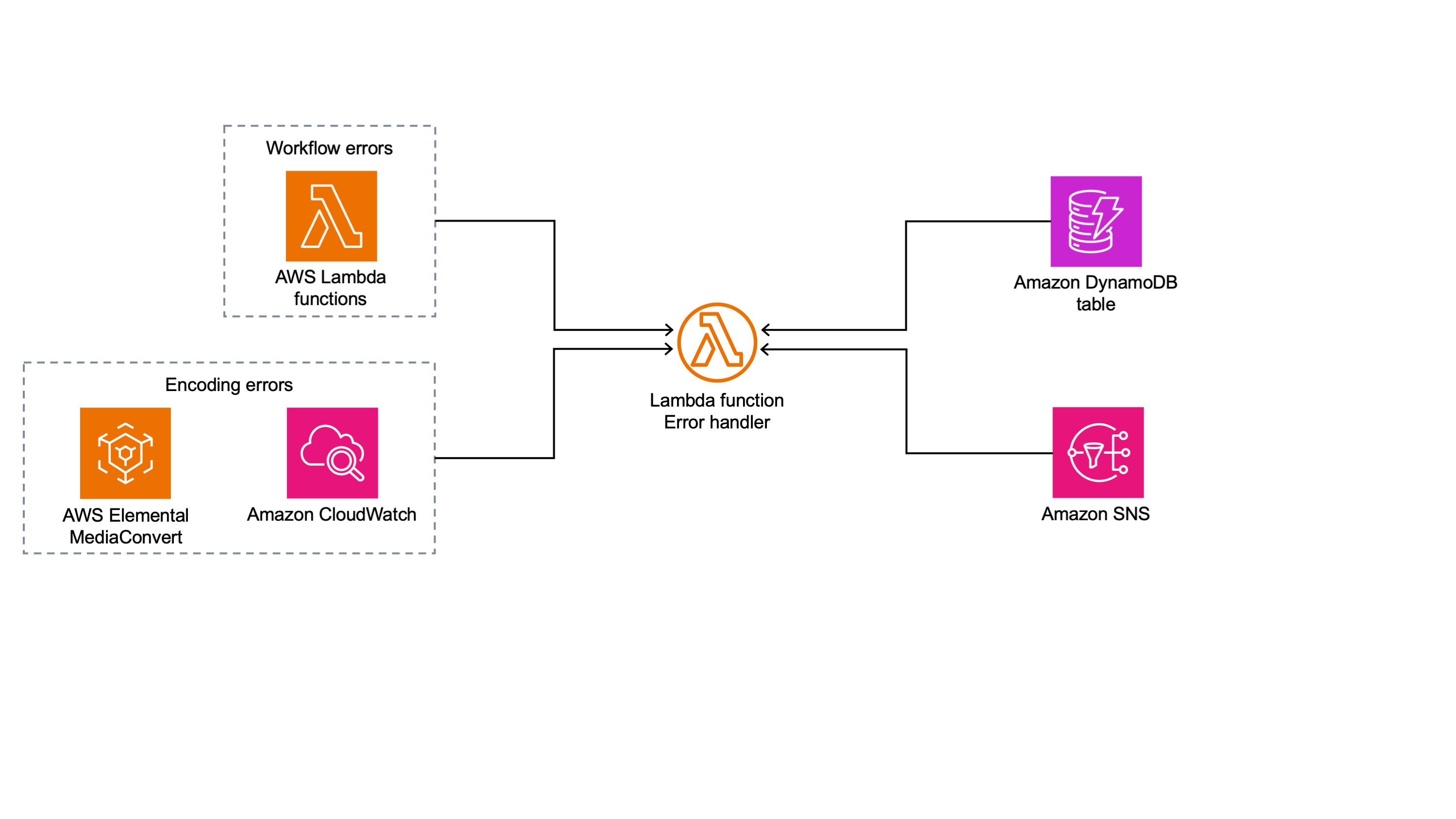
Figure 2: Video on Demand Error Handling
Ingest Step Functions
Video-only workflow
When a new MP4, MPG, M4V, M2TS, or MOV video is added to the source Amazon S3 bucket, a Lambda function invokes the ingest workflow. During ingestion, source video details are added to Amazon DynamoDB, the content is validated using MediaInfo, open-source software that displays technical information about media files, and details are stored in DynamoDB.
Important: Source video file extensions (.mp4, .mpg, .m4v, .m2ts, or .mov) must be lowercase and file names cannot contain spaces.
Metadata and video workflow
When a new metadata file is added to the source Amazon S3 bucket, a Lambda function invokes the ingest workflow. During ingestion, the metadata file, source video, and encoding configuration details are added to Amazon DynamoDB, the source video is validated using MediaInfo and details are stored in DynamoDB.
Important: You must upload the source video file to the Amazon S3 bucket before you upload the metadata file. Note that the upload must complete before you upload the metadata file.
Processing Step Functions
The Guidance uses the height and width of the source video to determine which job template to use to submit encoding jobs to MediaConvert. If you allow frame capture, the frame capture parameters are added to the job template. Then, the encoding job is created in MediaConvert and the details are stored in DynamoDB.
Publishing Step Functions
After the video is encoded, MediaConvert sends a notification to Amazon CloudWatch. An Amazon CloudWatch Events rule invokes the publishing AWS Step Functions step function, which validates the outputs, and updates the DynamoDB table with the new content details.
When the workflow is finished, Amazon SNS and/or Amazon SQS sends a publish notification based on the configuration you choose. If you choose to archive your source content, the source files are tagged to allow the Amazon S3 lifecycle policy to move files to Amazon Glacier or Amazon Deep Archive.
AWS services in this Guidance
| AWS service | Description |
|---|---|
| Amazon CloudFront | Core. Accelerates delivery of your video content to end users. |
| Amazon DynamoDB | Core. Tracks source and destination file metadata and progress through the workflow. |
| AWS Elemental MediaConvert | Core. Transcodes media files from their source format into versions that play back smartphones, tablets, PCs and other devices. |
| AWS Lambda | Core. Runs code without provisioning or managing servers. |
| Amazon S3 | Core. Provides buckets for object storage. |
| Amazon SNS | Core. Sends publishing, encoding, and error notifications. |
| Amazon SQS | Core. Captures the workflow output. |
| AWS Step Functions | Core. Builds applications from individual components that each perform a discrete function. |
| Amazon CloudWatch | Supporting. Tracks encoding jobs. |
| AWS Identity and Access Management (IAM) | Supporting. Assigns granular access policies and permissions to services and users. |
| AWS Systems Manager | Supporting. Provides application-level resource monitoring and visualization of resource operations and cost data. |
| AWS Elemental MediaPackage | Optional. Creates video streams formatted to play on several devices from a single video input, and protects content from unauthorized use through content encryption and digital rights management. |
How the Guidance works
Ingest workflow
When a new video is added to the source Amazon Simple Storage Service (Amazon S3) bucket, an AWS Lambda function starts the ingest step function. The ingest step function includes:
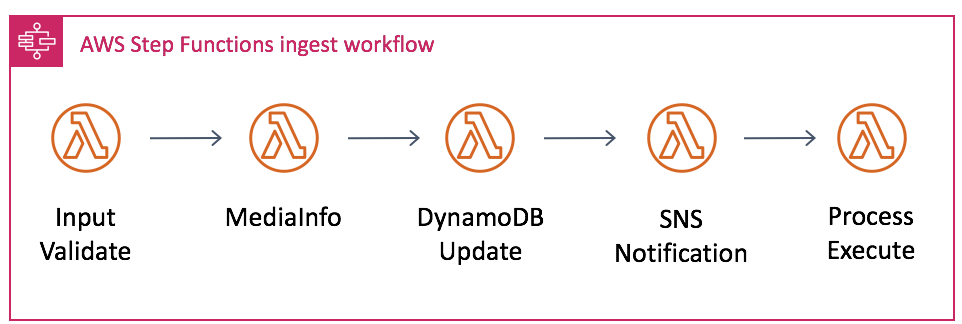
Figure 3: Ingest Workflow
Input Validate – Parses the input to the workflow, checks for the source video file, and defines the workflow configuration using the AWS Lambda function environment variables. If turned on, this step downloads the metadata file and overwrites the default environment variables with the variable definitions in the metadata file (metadata and video version only). For more information, refer to Metadata file.
MediaInfo – Generates a signed Amazon S3 URL for the source video and runs MediaInfo to extract metadata about the video.
DynamoDB Update – Takes accumulated data from each step and stores it in Amazon DynamoDB.
SNS Notification – Sends an Amazon Simple Notification Service (Amazon SNS) notification with a summary of the ingest process.
Process Execute – Starts the processing workflow.
Processing workflow
When the ingest workflow is complete, it starts the processing workflow. The processing workflow includes:
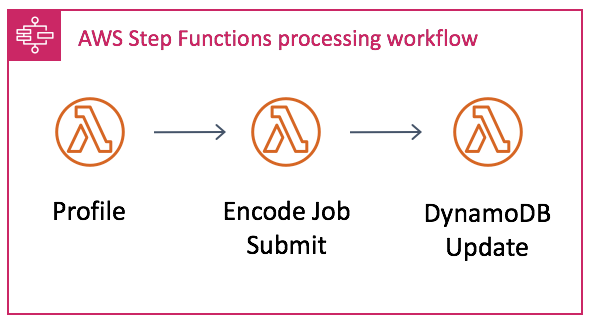
Figure 4: Processing Workflow
Profiler – Gets the source video’s height and width from the metadata file, defines the settings for frame capture (if turned on), and chooses which template to use for encoding based on the source video’s height. For example, if the source video is greater than or equal to 1080p, the 1080p job template will be used.
Encoding Profile Check, Accelerated Transcoding Check, and Frame Capture check – Helps visualize which settings the profiler step applied.
Encode Job Submit – Submits the encoding job with the template defined by the profiler to MediaConvert.
Dynamo Update – Takes accumulated data from each step and stores it in Amazon DynamoDB.
Publishing workflow
When encoding is complete, Amazon Simple Notification Service (Amazon SNS) sends a notification that invokes an AWS Lambda function that starts the publishing process. The publishing process includes:
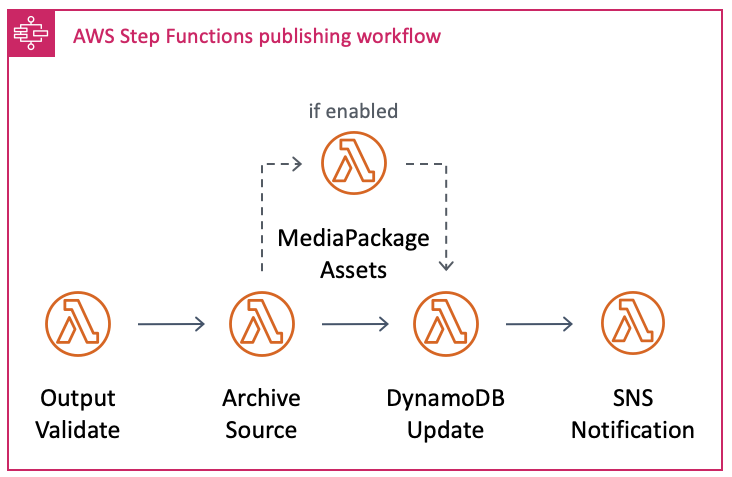
Figure 5: Publishing Workflow
Output Validate - Checks the event data for the completed encoding job, gets the GUID from the MediaConvert notification, gets the asset details from Amazon DynamoDB, and generates the Amazon Simple Storage Service (Amazon S3) and Amazon CloudFront URLs for the MediaConvert outputs.
Archive Choice – If Glacier or Glacier Deep Archive was activated, this step tags the source video with a unique identifier and the archive to invoke the Amazon Glacier lifecycle policy.
MediaPackage Choice – If you configure the Guidance to use MediaPackage, this step takes the output from MediaConvert and uses it as a source for a MediaPackage asset, which contains all the information MediaPackage requires to ingest file-based video content.
DynamoDB Update – Updates Amazon DynamoDB table with the event data.
SQS Choice – If activated, this step sends all workflow outputs to an SQS queue that is ingested into upstream workflows or processes.
SNS Choice – If activated, this step sends an Amazon SNS notification with a summary of the workflow and the Amazon CloudFront URLs.
Plan your deployment
This section describes the cost, security, Regions, and other considerations prior to deploying the Guidance.
Cost
You are responsible for the cost of the AWS services used while running this Guidance, which can vary based on the following factors:
The size of your videos.
The number of outputs created.
The number of views the published content receives through CloudFront.
MediaConvert composes the majority of the cost. For more information about MediaConvert pricing, refer to MediaConvert Pricing.
We recommend creating a budget through AWS Cost Explorer to help manage costs. Prices are subject to change. For full details, see the pricing webpage for each AWS service used in this Guidance.
Example cost for a 60-minute source video
As of this revision, the estimated cost for using this Guidance with the default encoding settings to process a 60-minute source video in the US East (N. Virginia) Region is approximately $4.23. This estimate may vary depending on the source video size and format. The following test was run with a 1080p 60-minute input video file. This does not include Amazon S3 storage costs, which vary depending on input file size. 4K video input will increase costs.
| AWS service | Dimensions | Cost [USD] |
|---|---|---|
| AWS Elemental MediaConvert | Output profile: AVC code, 1 pass quality, 30 fps | $4.23 |
| Amazon CloudFront | Using the price of $0.085 per GB for CloudFront. A 60-minute video with the default job settings streamed to 1,000 users would cost approximately: 0.75 MB/s * 1000 users * 3600 seconds ~= 2700 GB/hour. 2700 GB/hour * $0.085 = $229.50 an hour | $229.50 |
| AWS Step Functions | Free tier cost is negligible even beyond free tier | $0.00 |
| AWS Lambda | A 60-minute video will invoke around 24 lambda functions. When all free tier is used up, $0.0000002 * 24 requests = $0.0000048 | $0.0000048 |
| Amazon S3 | A 60-minute video will at most use 9GB of storage on S3 depending on the complexity of the video content. $0.023 per GB * 9GB = $0.207. | $0.21 |
| Amazon DynamoDB | Free tier. Cost is negligible even beyond free tier | $0.00 |
| Amazon CloudWatch | Free tier. Cost is negligible even beyond free tier | $0.00 |
| Amazon Simple Queue Service (Amazon SQS) | Free tier. Cost is negligible even beyond free tier | $0.00 |
| Amazon Simple Notification Service (Amazon SNS) | Free tier. Cost is negligible even beyond free tier | $0.00 |
| Total: | $233.94 | |
| (Optional) AWS Elemental MediaPackage | $0.05 |
The following table lists the professional tier costs for the MediaConvert settings used in this example:
| Output | Cost [USD] |
|---|---|
| SD reGuidance | $ 0.0075/min |
| HD reGuidance | $ 0.024/min |
Output with calculations:
HLS profile: 3 SD and 2 HD (3 x 60 x $0.0075) + (2 x 60 x $0.024) Total cost = $1.35 + $2.88 = $4.23
The costs for CloudFront and Amazon S3 storage varies depending on the number and format of outputs created and the number of requests to view the content delivered through CloudFront. To calculate your average cost, use the data size of your output multiplied by the average number of viewers for your stream.
Security
When you build systems on AWS infrastructure, security responsibilities are shared between you and AWS. This shared responsibility model reduces your operational burden because AWS operates, manages, and controls the components including the host operating system, the virtualization layer, and the physical security of the facilities in which the services operate. For more information about AWS security, visit AWS Cloud Security.
IAM roles
IAM roles allow customers to assign granular access policies and permissions to services and users on the AWS Cloud. This Guidance creates several IAM roles, including a role that grants MediaConvert access to Amazon API Gateway and Amazon Simple Storage Service. This role is necessary to allow the services to operate in your account.
Amazon S3 bucket policy
The Amazon S3 buckets for MediaConvert output includes a policy that allows access from CloudFront. Because the CloudFront endpoints are publicly accessible, the MediaConvert output bucket is also publicly accessible. For information on how to secure Amazon CloudFront, refer to Serving Private Content through CloudFront in the Amazon CloudFront Developer Guide.
Customization
This Guidance leverages AWS Step Functions, which breaks the workflow into individual steps, making it easier to customize or extend the architecture for your specific video-on-demand needs. For example, you can modify or replace the encoding steps to produce different content sets. You can also add steps to extend support for more complex workflows, including image processing for poster artwork or additional custom data to the metadata file that will then be stored in DynamoDB. The Guidance originates MediaConvert output content directly from Amazon S3 through CloudFront. You can, however, customize the Guidance to leverage a dedicated origin server such as MediaPackage.
Each time the workflow is initiated, the Guidance creates a unique identifier. The unique identifier is used as the primary key in DynamoDB and the run ID in Step Functions. The unique identifier is passed to each step in the workflow, allowing information to be stored and retrieved in DynamoDB. This makes it easier to add and remove steps from the workflow.
Guidance updates
To continue using this Guidance with the latest features and improvements, you must deploy the latest version of this stack. For information about updating your stack, refer to Update the Guidance.
Installing version 6.1.4 creates three new MediaConvert job templates that only output HLS renditions to reduce cost, without the use of presets. For more information, refer to MediaConvert templates. Updating an existing Guidance deployment to version 6.1.4 creates these new templates without deleting the presets or templates created by the older versions. To use an older template with the latest version of the Guidance, specify the template using the JobTemplate field in your metadata file. For more information, refer to Metadata file. Or, you can replace the default templates in the Input Validate AWS Lambda function by modifying the MediaConvert_Template_<resolution> environment variables.
Supported AWS Regions
This Guidance uses the MediaConvert and MediaPackage services, which are not currently available in all AWS Regions. For the most current availability of AWS services by Region, see the AWS Regional Services List.
Video on Demand on AWS is available, including the optional MediaPackage service, in the following AWS Regions:
| Region name | Region name |
|---|---|
| US East (Ohio) | Asia Pacific (Tokyo) |
| US East (N. Virginia) | Canada (Central) |
| US West (Northern California)* | Europe (Frankfurt) |
| US West (Oregon) | Europe (Ireland) |
| Asia Pacific (Mumbai) | Europe (London) |
| Asia Pacific (Seoul) | Europe (Paris) |
| Asia Pacific (Singapore) | Europe (Stockholm) |
| Asia Pacific (Sydney) | South America (São Paulo) |
Quotas
Service quotas, also referred to as limits, are the maximum number of service resources or operations for your AWS account.
Quotas for AWS services in this Guidance
Make sure you have sufficient quota for each of the services implemented in this Guidance. For more information, see AWS service quotas.
Use the following links to go to the page for that service. To view the service quotas for all AWS services in the documentation without switching pages, view the information in the Service endpoints and quotas page in the PDF instead.
AWS CloudFormation quotas
Your AWS account has AWS CloudFormation quotas that you should be aware of when launching the stack in this Guidance. By understanding these quotas, you can avoid limitation errors that would prevent you from deploying this Guidance successfully. For more information, see AWS CloudFormation quotas in the in the _AWS CloudFormation User’s Guide_.
MediaConvert quotas
All MediaConvert jobs run in a queue. If you don't specify a queue when you create your job, MediaConvert sends it to the default on-demand queue. For information about how many queues you can create and how many jobs those queues can run, refer to Queues in the _MediaConvert User Guide_ and see Service quotas in the _AWS General Reference Guide_.
MediaPackage quotas
This Guidance includes the option to use MediaPackage as part of the workflow. Customers who ingest large quantities of files may exceed MediaPackage limits for video-on-demand content. For more information and instructions on how to request a limit increase, refer to VOD Content Limits in the _AWS Elemental MediaPackage User Guide_.
Deploy the Guidance
This Guidance uses AWS CloudFormation templates and stacks to automate its deployment. The CloudFormation template specifies the AWS resources included in this Guidance and their properties. The CloudFormation stack provisions the resources that are described in the template.
Deployment process overview
Before you launch the Guidance, review the cost, architecture, network security, and other considerations discussed earlier in this guide.
Important: This Guidance includes an option to send anonymized operational metrics to AWS. We use this data to better understand how customers use this Guidance and related services and products. AWS owns the data gathered though this survey. Data collection is subject to the AWS Privacy Notice.
To opt out of this feature, download the template, modify the AWS CloudFormation mapping section, and then use the AWS CloudFormation console to upload your updated template and deploy the Guidance. For more information, see the Anonymized data collection section of this guide.
Source code
Node.js 22
- archive-source: Lambda function to tag the source video in s3 to enable the Glacier lifecycle policy.
- custom-resource: Lambda backed CloudFormation custom resource to deploy MediaConvert templates configure S3 event notifications.
- dynamo: Lambda function to Update DynamoDB.
- encode: Lambda function to submit an encoding job to AWS Elemental MediaConvert.
- error-handler: Lambda function to handler any errors created by the workflow or MediaConvert.
- input-validate: Lambda function to parse S3 event notifications and define the workflow parameters.
- media-package-assets: Lambda function to ingest an asset into MediaPackage-VOD.
- output-validate: Lambda function to parse MediaConvert CloudWatch Events.
- profiler: Lambda function used to send publish and/or error notifications.
- step-functions: Lambda function to trigger AWS Step Functions.
Python 3.13
- mediainfo: Lambda function to run mediainfo on an S3 signed url.
./source/mediainfo/bin/mediainfo must be made executable before deploying to lambda.
Prerequisites:
- AWS Command Line Interface
- Node.js 22.x or later
- Python 3.13 or later
- Download or clone the repo
1. (Optional) Run unit tests for any customization
Run unit tests to make sure any customizations that you have made pass the tests:
cd ./deployment
chmod +x ./run-unit-tests.sh
./run-unit-tests.sh
2. Create an Amazon S3 Bucket
The CloudFormation template is configured to pull the Lambda deployment packages from Amazon S3 bucket in the region the template is being launched in. Create a bucket in the desired region with the region name appended to the name of the bucket (e.g. for us-east-1 create a bucket named my-bucket-us-east-1).
aws s3 mb s3://my-bucket-us-east-1
3. Build MediaInfo
Build MediaInfo using the following commands on an EC2 instance running an Amazon Linux AMI.
sudo yum update -y
sudo yum groupinstall 'Development Tools' -y
sudo yum install libcurl-devel -y
wget https://mediaarea.net/download/binary/mediainfo/20.09/MediaInfo_CLI_20.09_GNU_FromSource.tar.xz
tar xvf MediaInfo_CLI_20.09_GNU_FromSource.tar.xz
cd MediaInfo_CLI_GNU_FromSource/
./CLI_Compile.sh --with-libcurl
Run this command to confirm the compilation was successful:
./MediaInfo/Project/GNU/CLI/mediainfo --version
Copy the mediainfo binary into the source/mediainfo/bin directory of your cloned respository.
If you’d like to use a precompiled MediaInfo binary for Lambda built by the MediaArea team, you can download it here. For more information, check out the MediaInfo site.
4. Create the deployment packages
First change directory into the deployment directory. Run the following commands to build the distribution.
chmod +x ./build-s3-dist.sh
./build-s3-dist.sh my-bucket video-on-demand-on-aws version
Notes: The build-s3-dist script expects the bucket name as one of its parameters, and this value should not include the region suffix.
Run this command to ensure that you are an owner of the AWS S3 bucket you are uploading files to.
aws s3api head-bucket --bucket my-bucket-us-east-1 --expected-bucket-owner <YOUR-AWS-ACCOUNT-ID>
Deploy the distributable to the Amazon S3 bucket in your account:
aws s3 sync ./regional-s3-assets/ s3://my-bucket-us-east-1/video-on-demand-on-aws/<version>/
aws s3 sync ./global-s3-assets/ s3://my-bucket-us-east-1/video-on-demand-on-aws/<version>/
5. Launch the Stack.
Follow the step-by-step instructions in this section to configure and deploy the Guidance into your account.
Time to deploy: Approximately 20 minutes
Sign in to the AWS Management Console
Note: This Guidance uses MediaConvert and MediaPackage, which are not currently available in all AWS Regions. You must launch this Guidance in an AWS Region where MediaConvert and MediaPackage are available. For the most current availability by Region, see the AWS Regional Services List.
Get the link of the video-on-demand-on-aws.template uploaded to your Amazon S3 bucket.
On the Create stack page, paste the template S3 URL is in the Amazon S3 URL text box and choose Next.
On the Specify stack details page, assign a name to your Guidance stack. For information about naming character limitations, see IAM and AWS STS quotas, name requirements, and character limits in the _AWS Identity and Access Management User Guide_.
Under Parameters, review the parameters for this Guidance template and modify them as necessary. This Guidance uses the following default values.
| Parameter | Default | Description |
|---|---|---|
| Notification | <Requires input> | A valid email address to receive Amazon SNS notifications. |
| Workflow Trigger | <Requires input> | Choose VideoFile to ingest source videos only; choose MetadataFile to ingest metadata files and source videos. |
| Archive Source | false | Choose GLACIER to activate an Amazon S3 Content lifecycle policy on the source bucket to move applicable files to Amazon Glacier after seven days, DEEP_ARCHIVE to move to Glacier deep archive. |
| Enable SNS | true | Choose true to receive SNS notifications for the ingest and publish workflows. Choose false to only receive error messages. |
| Enable SQS | true | Choose true to deploy an SQS queue for publishing messages. |
| Enable Frame Capture | false | Choose true to create thumbnails for each MediaConvert output. |
| Accelerated | PREFERRED | Choose PREFERRED to activate Accelerated Transcoding Transcoding for supported file types (recommended), ENABLE to apply to all encoding jobs. |
| Enable MediaPackage | false. | Choose true to activate MediaPackage as part of the workflow. |
Select Next.
On the Configure stack options page, choose Next.
On the Review page, review and confirm the settings. Select the box acknowledging that the template will create AWS Identity and Access Management (IAM) resources.
Choose Create stack to deploy the stack.
You can view the status of the stack in the AWS CloudFormation console in the Status column. You should receive a CREATE_COMPLETE status in approximately 20 minutes.
After the stack is created, Amazon SNS sends three subscription notifications to the admin email address with links to activate encoding, publishing, and error notifications.
In the subscription notification emails, select each link to activate SNS notifications.
Note: In addition to the AWS Lambda functions that create Guidance resources and manage the ingest and publishing processes, this Guidance includes the custom-resource Lambda function, which runs only during initial configuration or when resources are updated or deleted.
When running this Guidance, the custom-resource function is inactive. However, do not delete the function as it is necessary to manage associated resources.
Monitoring the Guidance with AWS Service Catalog AppRegistry
The Guidance includes a Service Catalog AppRegistry resource to register the CloudFormation template and underlying resources as an application in both Service Catalog AppRegistry and Application Manager.
AWS Systems Manager Application Manager gives you an application-level view into this Guidance and its resources so that you can:
Monitor its resources, costs for the deployed resources across stacks and AWS accounts, and logs associated with this Guidance from a central location.
View operations data for the Guidance’s AWS resources (such as deployment status, Amazon CloudWatch alarms, resource configurations, and operational issues) in the context of an application.
The following figure depicts an example of the application view for this Guidance stack in Application Manager.
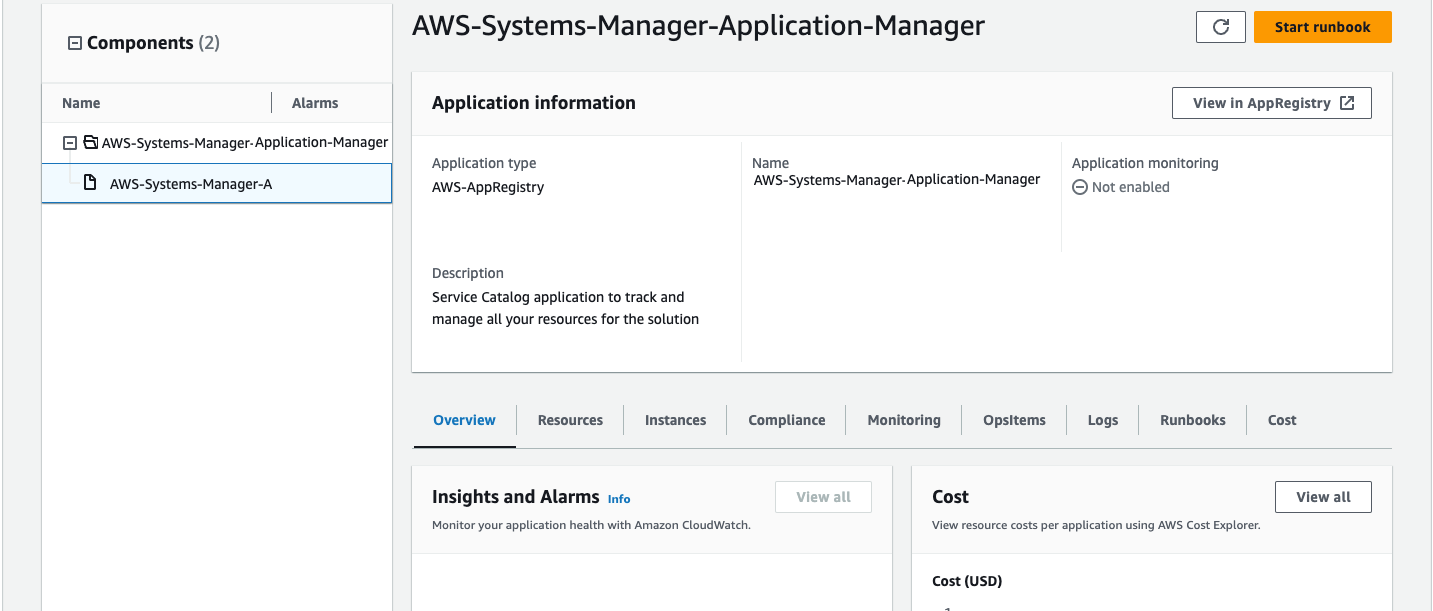
Figure 6: Application Manager
Note: You must activate CloudWatch Application Insights, AWS Cost Explorer, and cost allocation tags associated with this Guidance. They are not activated by default.
Activate CloudWatch Application Insights
Sign in to the Systems Manager console.
In the navigation pane, choose Application Manager.
In Applications, choose AppRegistry applications.
In AppRegistry applications, search for the application name for this Guidance and select it.
The next time you open Application Manager, you can find the new application for your Guidance in the AppRegistry application category.
In the Components tree, choose the application stack you want to activate.
In the Monitoring tab, in Application Insights, select Auto-configure Application Monitoring.

Figure 7: Application Insights Screen
Monitoring for your applications is now activated and the following status box appears:
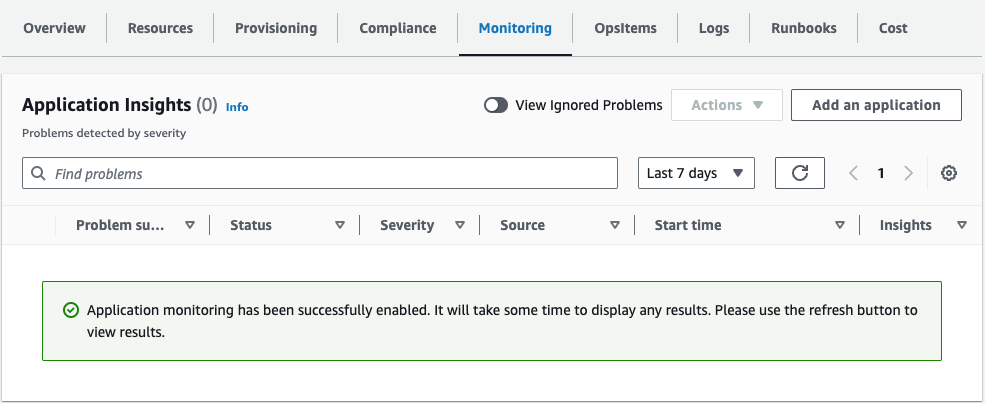
Figure 8: Monitoring Enabled
Activate AWS Cost Explorer
You can see the overview of the costs associated with the application and application components within the Application Manager console through integration with AWS Cost Explorer which must be first activated. Cost Explorer helps you manage costs by providing a view of your AWS resource costs and usage over time. To activate Cost Explorer for the Guidance:
Sign in to the AWS Cost Management console.
In the navigation pane, select Cost Explorer.
On the Welcome to Cost Explorer page, choose Launch Cost Explorer.
The activation process can take up to 24 hours to complete. Once activated, you can open the Cost Explorer user interface to further analyze cost data for the Guidance.
Activate cost allocation tags associated with the Guidance
After you activate Cost Explorer, you must activate the cost allocation tags associated with this Guidance to see the costs for this Guidance. The cost allocation tags can only be activated from the management account for the organization. To activate cost allocation tags:
Sign in to the AWS Billing and Cost Management console.
In the navigation pane, select Cost Allocation Tags.
On the Cost allocation tags page, filter for the AppManagerCFNStackKey tag, then select the tag from the results shown.
Choose Activate.
The activation process can take up to 24 hours to complete and the tag data to appear.
Confirm cost tags associated with the Guidance
After you activate cost allocation tags associated with the Guidance, you must confirm the cost allocation tags to see the costs for this Guidance. To confirm cost allocation tags:
Sign in to the Systems Manager console.
In the navigation pane, choose Application Manager.
In Applications, choose the application name for this Guidance and select it.
In the Overview tab, in Cost, select Add user tag.
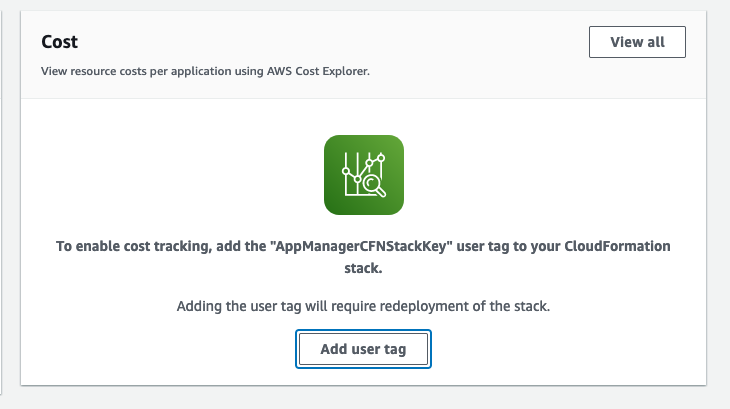
Figure 9: Add User Tag
On the Add user tag page, enter confirm, then select Add user tag.
The activation process can take up to 24 hours to complete and the tag data to appear.
Update the Guidance
If you have previously deployed the Guidance, follow this procedure to update the Guidance’s CloudFormation stack to get the latest version of the Guidance’s framework.
From the main account where the Guidance is deployed, sign in to the CloudFormation console, select your existing Video on Demand on AWS CloudFormation stack, and select Update.
Select Replace current template.
Under Specify template:
a. Select Amazon S3 URL.
b. Copy the link of the latest template.
c. Paste the link in the Amazon S3 URL box.
d. Verify that the correct template URL shows in the Amazon S3 URL text box, and choose Next. Choose Next again.
Under Parameters, review the parameters for the template and modify them as necessary. For details about the parameters, see Launch the Stack.
Choose Next.
On the Configure stack options page, choose Next.
On the Review page, review and confirm the settings. Check the box acknowledging that the template will create AWS Identity and Access Management (IAM) resources.
Choose View change set and verify the changes.
Choose Update stack to deploy the stack.
You can view the status of the stack in the AWS CloudFormation console in the Status column. You should receive a UPDATE_COMPLETE status in approximately 20 minutes.
Troubleshooting
This Guidance does not have troubleshooting instructions. See the Contact AWS Support section for instructions on opening an AWS Support case for this Guidance.
Contact AWS Support
If you have AWS Developer Support , AWS Business Support , or AWS Enterprise Support , you can use the Support Center to get expert assistance with this Guidance. The following sections provide instructions.
Create case
Sign in to Support Center.
Choose Create case.
How can we help?
Choose Technical.
For Service, select Solutions.
For Category, select Video on Demand on AWS.
For Severity, select the option that best matches your use case.
When you enter the Service, Category, and Severity, the interface populates links to common troubleshooting questions. If you can’t resolve your question with these links, choose Next step: Additional information.
Additional information
For Subject, enter text summarizing your question or issue.
For Description, describe the issue in detail.
Choose Attach files.
Attach the information that AWS Support needs to process the request.
Help us resolve your case faster
Enter the requested information.
Choose Next step: Solve now or contact us.
Solve now or contact us
Review the Solve now Guidances.
If you can’t resolve your issue with these Guidances, choose Contact us, enter the requested information, and choose Submit.
Uninstall the Guidance
You can uninstall the Guidance for Video on Demand on AWS from the AWS Management Console or by using the AWS Command Line Interface. You must manually delete the Amazon S3 buckets, a DynamoDB table, and CloudWatch Logs created by this Guidance. AWS Solutions do not automatically delete these resources in case you have stored data to retain.
Deleting the AWS CloudFormation stack
Note: AWS CloudFormation StackSets are automatically deleted when you uninstall the Guidance’s stack.
Using the AWS Management Console
Sign in to the CloudFormation console.
On the Stacks page, select this Guidance’s installation stack.
Choose Delete.
Using AWS Command Line Interface
Determine whether the AWS Command Line Interface (AWS CLI) is available in your environment. For installation instructions, see What Is the AWS Command Line Interface in the AWS CLI User Guide. After confirming that the AWS CLI is available, run the following command.
aws cloudformation delete-stack --stack-name <installation-stack-name>
Replace <installation-stack-name> with the name of your CloudFormation stack.
Deleting the Amazon S3 buckets
This Guidance is configured to retain the Guidance-created Amazon S3 buckets (for deploying in an opt-in Region) if you decide to delete the AWS CloudFormation stack to prevent accidental data loss. After uninstalling the Guidance, you can manually delete these Amazon S3 buckets if you do not need to retain the data. Follow these steps to delete the Amazon S3 buckets.
Using the AWS Management Console
Sign in to the Amazon S3 console.
Choose Buckets from the left navigation pane.
Locate the <stack-name> Amazon S3 buckets.
Select one of the Amazon S3 buckets and choose Delete.
Repeat the steps until you have deleted all the <stack-name> Amazon S3 buckets.
Using AWS Command Line Interface
To delete the S3 bucket using AWS CLI, run the following command:
aws s3 rb s3://<bucket-name> --force
Alternatively, you can configure the AWS CloudFormation template to delete the Amazon S3 buckets automatically. Before deleting the stack, change the deletion behavior in the AWS CloudFormation DeletionPolicy attribute.
Deleting the DynamoDB table
This Guidance is configured to retain the DynamoDB tables if you decide to delete the AWS CloudFormation stack to prevent accidental data loss. After uninstalling the Guidance, you can manually delete the DynamoDB tables if you do not need to retain the data. Follow these steps:
Using the AWS Management Console
Sign in to the Amazon DynamoDB console.
Choose Tables from the left navigation pane.
Select the <stack-name> table and choose Delete.
Using AWS Command Line Interface
To delete the DynamoDB tables using AWS CLI, run the following command:
aws dynamodb delete-table <table-name>
Deleting the CloudWatch Logs
This Guidance retains the CloudWatch Logs if you decide to delete the AWS CloudFormation stack to prevent against accidental data loss. After uninstalling the Guidance, you can manually delete the logs if you do not need to retain the data. Follow these steps to delete the CloudWatch Logs.
Using the AWS Management Console
Sign in to the Amazon CloudWatch console.
Choose Log Groups from the left navigation pane.
Locate the log groups created by the Guidance.
Select one of the log groups.
Choose Actions and then choose Delete.
Repeat the steps until you have deleted all the Guidance log groups.
Developer guide
This section provides the source code for the Guidance and details about workflow configuration, the metadata file, and MediaConvert templates.
Source code
Visit our GitHub repository to download the source files for this Guidance and to share your customizations with others.
Workflow configuration
The Input Validate AWS Lambda function contains the following environment variables that define the workflow configuration.
| Environment Variable | Description |
|---|---|
| Archive Source | Choose whether to archive source videos in Amazon Glacier or Glacier Deep Archive. |
| CloudFront | The CloudFront domain name. This is used to generate the playback URLs for the MediaConvert outputs. |
| Destination | The name of the destination Amazon S3 bucket for all MediaConvert outputs. |
| FrameCapture | Choose whether to create thumbnails for each MediaConvert output. |
| MediaConvert_Template_2160p | The name of the UHD template for MediaConvert. |
| MediaConvert_Template_1080p | The name of the HD template for MediaConvert. |
| MediaConvert_Template_720p | The name of the SD template for MediaConvert. |
| Source | The name of the source Amazon S3 bucket. |
| WorkflowName | Used to tag MediaConvert encoding jobs. This is defined by the AWS CloudFormation stack name. |
| InputRotate | Specify how MediaConvert should rotate the source video. |
| AcceleratedTranscoding | The option to activate Accelerated Transcoding in MediaConvert. |
| EnableSQS | The option to activate SQS. |
| EnableSNS | The option to activate SNS. |
These variables are set when you deploy the AWS CloudFormation template and apply to all source videos uploaded to the Guidance’s Amazon S3 bucket.
If you set the Guidance to ingest source videos and metadata files, you can overwrite these files using a metadata file. For more information, refer to MediaConvert templates.
Metadata file
When you set the Guidance to ingest source videos and metadata files, the source Amazon S3 bucket is configured with an event notification that invokes the workflow when you upload a JSON file.
Note: The JSON file does not need a specific name, but it must have the JSON file extension. We recommend naming the JSON file the same name as the video file for consistency and ease of reference.
To invoke the workflow, you must upload a JSON metadata file. If you only upload a source video file, the workflow will not start.
IMPORTANT: You must upload the source video file to the Amazon S3 bucket before you upload the metadata file. Note that the upload must complete before you upload the metadata file.
The definitions in the metadata file overwrite the default settings you specified when you deployed the Guidance. This allows you to define different workflow configurations for each source video. If you do not specify a definition in the metadata file, the Guidance will use the default value you set during deployment. Note that the metadata file must include a definition for srcVideo.
The following example metadata files shows all available variable definitions.
{
  "srcVideo": "string",
  "archiveSource": "DISABLED|GLACIER|DEEP_ARCHIVE",
  "frameCapture": boolean,
  "srcBucket":"string",
  "destBucket":"string",
  "cloudFront":"string",
  "jobTemplate_2160p":"string",
  "jobTemplate_1080p":"string",
  "jobTemplate_720p":"string",
  "acceleratedTranscoding":"DISABLED|PREFERRED|ENABLED",
  "enableSqs": boolean,
  "enableSns": boolean,
  "jobTemplate":"custom-job-template",
  "InputRotate":"DEGREE_0|DEGREES_90|DEGREES_180|DEGREES_270|AUTO"
}
The following sample JSON metadata file will overwrite the default settings for the Archive Source Content and Enable Frame Capture AWS CloudFormation template parameters for the example.mpg file. The file will also set the job template for MediaConvert to custom-job-template.
{
  "srcVideo": "example.mpg",
  "archiveSource": "GLACIER",
  "frameCapture": false,
  "jobTemplate": "custom-job-template"
}
The Guidance for Video on Demand on AWS also supports adding additional metadata, such as title, genre, or any other information, you want to store in Amazon DynamoDB.
MediaConvert templates
The Guidance for Video on Demand on AWS outputs 4K, 1080p, and 720p MP4, and any combination of 1080p, 720p, 540p, 360p, and 270p HLS and DASH. By default, the Guidance selects the job template for MediaConvert based on the source video height. The Guidance includes three default job templates:
- MediaConvert_Template_2160p: 5 HLS outputs AVC 2160p through 270p
- MediaConvert_Template_1080p: 5 HLS outputs AVC 1080p through 270p
- MediaConvert_Template_720p: 4 HLS outputs AVC 720p through 270p
By default, the Guidance is configured to leverage Quality-Defined Variable Bitrate (QVBR) mode in MediaConvert. The QVBR settings are configured to the recommended values for each output, as shown in the following table.
| ReGuidance | Maximum Bitrate | QVBR Quality Level |
|---|---|---|
| 2160p | 15,000 Kbps | 9 |
| 1080p | 8,500 Kbps | 8 |
| 720p | 6,000 Kbps | 8 |
| 540p | 3,500 Kbps | 7 |
| 360p | 1,500 Kbps | 7 |
| 270p | 400 Kbps | 7 |
You can also modify the Guidance to use different QVBR settings, other system job templates, or your own custom job templates. For more information about working with job templates for MediaConvert, refer to Working with MediaConvert Job Templates. For more information about QVBR Mode, refer to Using the QVBR Rate Control Mode.
If you set the Guidance to ingest source videos and metadata files, you can specify the template using the JobTemplate field in your metadata file. For more information, refer to Metadata file. Or, you can replace the default templates in the Input Validate AWS Lambda function by modifying the MediaConvert_Template_<resolution> environment variables.
Reference
This section includes information about an optional feature for collecting unique metrics for this Guidance, pointers to related resources, and a list of builders who contributed to this Guidance.
Anonymized data collection
This Guidance includes an option to send anonymized operational metrics to AWS. We use this data to better understand how customers use this Guidance and related services and products. When invoked, the following information is collected and sent to AWS:
Solution ID - The AWS Guidance identifier
Unique ID (UUID) - Randomly generated, unique identifier for each Guidance for Video on Demand on AWS deployment
Timestamp - Data-collection timestamp
Use Glacier - Whether Amazon Glacier is used
Workflow Trigger - The workflow trigger selected
Frame Capture - Whether thumbnails are created for MediaConvert output
Enable MediaPackage - Whether MediaPackage is enabled
AWS owns the data gathered though this survey. Data collection is subject to the AWS Privacy Notice. To opt out of this feature, complete the following steps before launching the AWS CloudFormation template.
Download the AWS CloudFormation template to your local hard drive.
Open the AWS CloudFormation template with a text editor.
- Modify the AWS CloudFormation template mapping section from:
AnonymizedData:
SendAnonymizedData:
  Data: Yes
to:
AnonymizedData:
SendAnonymizedData:
  Data: No
Sign in to the AWS CloudFormation console.
Select Create stack.
On the Create stack page, Specify template section, select Upload a template file.
Under Upload a template file, choose Choose file and select the edited template from your local drive.
- Choose Next and follow the steps in Launch the stack in the Deploy the Guidance section of this guide.
Related resources
Contributors
- Eddie Goynes
- Tom Nightingale
- Joan Morgan
- San Dim Ciin
- Eric Thoman
- David Chung
- Raul Marquez
- Sean Byrne
- Damian McNamara
Revisions
| Date | Change |
|---|---|
| April 2017 | Initial release |
| June 2017 | Added information on new watermark functionality and processing workflow; updated information on the ingest and publishing workflows. |
| October 2017 | Added information on new metadata and video and video-only AWS CloudFormation templates and functionality; updated information on the ingest process and error handling. |
| March 2018 | Added AWS Elemental MediaConvert functionality. |
| November 2018 | Added information on new AWS Elemental MediaConvert job templates and functionality, and environment variables; removed Amazon Elastic Transcoder functionality. |
| April 2019 | Added information on support for AWS Elemental MediaConvert Quality-Defined Variable Bitrate (QVBR) Mode. |
| November 2019 | Added information on support for AWS Elemental MediaPackage, and Node.js and MediaInfo updates. |
| April 2020 | Added information about Accelerated Transcoding and notification options. |
| December 2020 | Release version v5.2.0: Added information about the new AWS Elemental MediaConvert templates, installation and upgrade behavior using latest Guidance version. For more information about changes for v5.2.0, refer to the CHANGELOG.md file in the GitHub repository. |
| September 2021 | Document enhancements, including updates to diagrams and architecture overview section. |
| November 2021 | Release version v5.3.0: Added new input file formats, reduced cost by removing Dash and MP4 outputs from AWS Elemental MediaConvert templates, changed frame rate to follow source, deinterlacer not activated by default allowing for basic tier pricing. For more information about changes for v5.3.0, refer to the CHANGELOG.md file in the GitHub repository. |
| December 2021 | Release version v5.3.1: For more information about changes for v5.3.1, refer to theCHANGELOG.md file in the GitHub repository. |
| November 2022 | Release version v6.0.0: Added a Service Catalog AppRegistry resource to register the CloudFormation template and underlying resources as an application in both AWS Service Catalog AppRegistry and AWS Systems Manager Application Manager. You can now manage costs, view logs, implement patching, and run automation runbooks for this Guidance from a central location. For more information about changes for v6.0.0, refer to the CHANGELOG.md file in the GitHub repository. |
| February 2023 | Release version v6.1.0: For more information about changes for v6.1.0, refer to the CHANGELOG.md file in the GitHub repository. |
| April 2023 | Release version 6.1.1: Mitigated impact caused by new default settings for S3 Object Ownership (ACLs disabled) for all new S3 buckets. For more information, refer to the CHANGELOG.md file in the GitHub repository. |
| April 2023 | Release version 6.1.2: Updated cache policy name to be unique for blueprint, updated stack name and logical ID for AWS Service Catalog AppRegistry, added package-lock.json files to packages, and updated Lambda nodes to Node.js 16. For more information, refer to the CHANGELOG.md file in the GitHub repository. |
| July 2023 | Release version 6.1.3: Upgraded to Node.js to 18 and JS SDK to v3. Updated S3 client to generate presigned URLs using v4 signature by default. Updated parameter names for consistency. Bug fixes. For more information, refer to the CHANGELOG.md file in the GitHub repository. |
| September 2023 | Release version 6.1.4: Fixed scripts to handle whitespace in directory names. For more information, refer to the CHANGELOG.md file in the GitHub repository. |
| October 2023 | Release version 6.1.5: Updated package versions to resolve security vulnerabilities. For more information, refer to theCHANGELOG.md file in the GitHub repository. |
| November 2023 | Documentation update: Added AWS Developer Support and merged Contact AWS Support into the Troubleshooting section. |
| November 2023 | Documentation update: Added Confirm cost tags associated with the Guidance to the Monitoring the Guidance with AWS Service Catalog AppRegistry section. |
| February 2026 | Documentation update: Format changes to suppport conversion from Solution to Guidance. Update of deployment instructions to match source repo README |
Notices
Customers are responsible for making their own independent assessment of the information in this document. This document: (a) is for informational purposes only, (b) represents AWS current product offerings and practices, which are subject to change without notice, and (c) does not create any commitments or assurances from AWS and its affiliates, suppliers or licensors. AWS products or services are provided “as is” without warranties, representations, or conditions of any kind, whether express or implied. AWS responsibilities and liabilities to its customers are controlled by AWS agreements, and this document is not part of, nor does it modify, any agreement between AWS and its customers.
Video on Demand on AWS is licensed under the terms of the of the Apache License Version 2.0 available at The Apache Software Foundation.